
Following his handy PS4 AIO Batch File Script for Games & Updates with FPKG Tools, this weekend PlayStation 4 Scene developer @jation released PS4 Tools: Context Menu allowing Windows users to perform a wide variety of useful operations in a single (right) click on PS4 .PKG extension files... and is the first tool supporting Remaster PKGs (BASE games with a higher version than v1.00) creation automatically! 
Download: PS4 Tools v46.rar (4.32 MB)
Spoiler: Depreciated
 Before diving into the release, a brief Remaster PKG lesson for those interested:
Since covering How to Remarry PS4 PKGs previously, @Archi55 (Ko-fi Page - who tested PS4 Tools: Context Menu) notes that new users are merging game BASE + UPDATE into a single v1.00 file because they don't know how to create a higher version... resulting in a second 'fake' patch required simply to increase the app version displayed leaving them with (2) files unnecessarily.
 A Remaster PKG acts as both the game BASE v1.00 and UPDATE (for example, v2.03) in single file to save time and save space... as you don't need a BASE v1.00 with UPDATE v2.03 inside and then another 'fake' patch to correctly display the app version as v2.03 in order to trick the PS4 System into showing the proper (higher) version.
 It's important to note when building Remaster PKGs a BASE v1.00 game file (doesn't matter which, it can be a fake base out of sce_sys) is necessary to link to during the creation process.
This means, for example, a Remaster PKG with UPDATE v2.03 can be installed without first installing the BASE v1.00 (saving time and saving space) since the Remaster PKG overwrites BASE v1.00 as you can't have both with the same Content ID on the PS4 System.
PS4 Tools - Context Menu
1. Installation
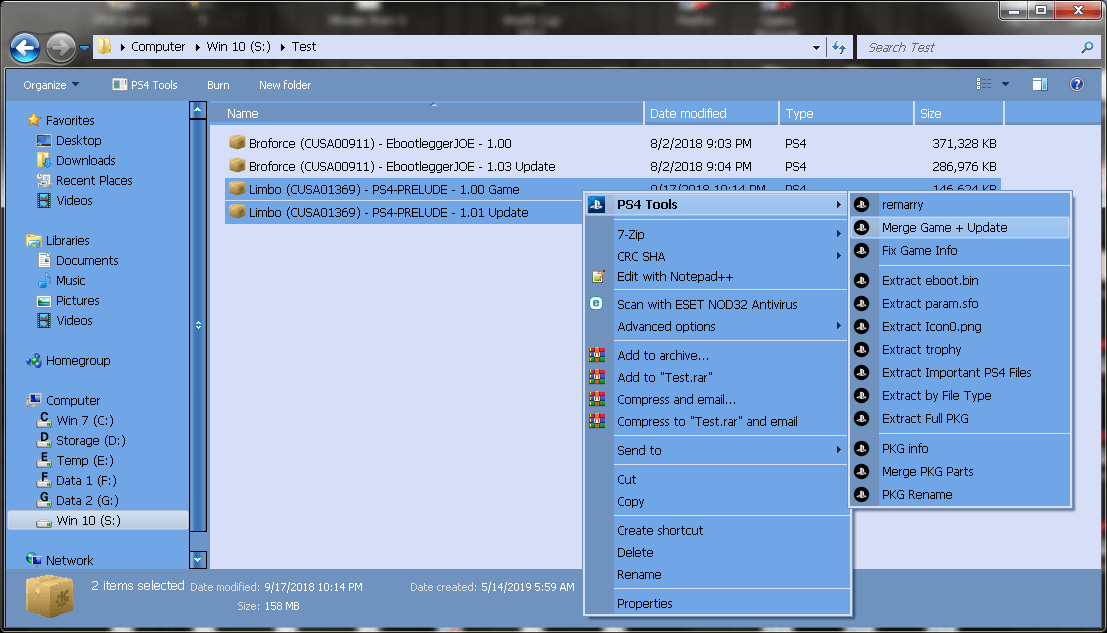
2. Usage
Remarry
To remarry Game and Update both files needs to be selected, after that just click Right Mouse Button on them and select 'Remarry' in PS4 Tools context menu.
Merge Game + Update
To Merge Game and Update both files need to be selected, after that just click Right Mouse Button on them and select 'Merge Game + Update' in PS4 Tools menu. Merged game will be Remaster Type with already proper display version in PS4 System Menu in single PKG file.
Fix Game Info
For files which already exists as base game with update inside or already merged, but display option on PS4 System shows v1.00. This option will create small PKG update around 5-10MB. After that PKG should be installed on PS4 and you will have proper displayed version of game on PS4 System Menu.
Extract eboot.bin
This option will extract only eboot.bin from PKG in current directory.
Extract param.sfo
Only param.sfo will be extracted from PKG in current directory.
Extract Icon0.png
This option will extract only Icon0.png from PKG in current directory.
Extract trophy
Only trophy00.trp will be extracted from PKG in current directory.
Extract Important PS4 Files
This option will create folder with name of game and extract only those files in that directory:
This option will create folder with name of game and extract specific extension of files in that directory: Example input:
or when extract multiple file extensions:
No comma between extensions, just space bar.
Extract Full PKG
This option will create folder with name of game and Extract full PKG in that directory.
PKG info
This option will open cmd windows and display some basic info about PKG file like: name, app version, $DK, required firmware version, etc...
Merge PKG Parts
If patch is downloaded from orbispatches and split into parts, this option will merge them into single PKG file. Only one part needs to be selected.
Notes:
Thanks to @Archi55 for testing, bug hunting and instructions for creating Remaster PKG with proper display version in PS4 System menu.
Changelog:
v35
Will backup all backported files from backported pkg in zip file. For < 9.00 users who want to keep Game & untouched Update. After backup is done, user can delete backported pkg to save space on hdd.
Rebuild Backport from Backuped Files
Will rebuild untouched update to backported pkg again. Just need to select all three files: Game, untouched update & zip archive from backup.
Merge Game + Update + Backported Files
Same as option above, only difference is Game, untouched Update & zip with backuped backported files will be merged to remaster Game pkg with backported files.
Extract Game Modules
Only for backporters. All files which need to be backported will be extracted, while folder structure is preserved, for easier work.
v36
Merge Game + Update - Remaster
Download: PS4 Tools v46.rar (4.32 MB)
Spoiler: Depreciated
Before diving into the release, a brief Remaster PKG lesson for those interested:Since covering How to Remarry PS4 PKGs previously, @Archi55 (Ko-fi Page - who tested PS4 Tools: Context Menu) notes that new users are merging game BASE + UPDATE into a single v1.00 file because they don't know how to create a higher version... resulting in a second 'fake' patch required simply to increase the app version displayed leaving them with (2) files unnecessarily.
A Remaster PKG acts as both the game BASE v1.00 and UPDATE (for example, v2.03) in single file to save time and save space... as you don't need a BASE v1.00 with UPDATE v2.03 inside and then another 'fake' patch to correctly display the app version as v2.03 in order to trick the PS4 System into showing the proper (higher) version. It's important to note when building Remaster PKGs a BASE v1.00 game file (doesn't matter which, it can be a fake base out of sce_sys) is necessary to link to during the creation process.This means, for example, a Remaster PKG with UPDATE v2.03 can be installed without first installing the BASE v1.00 (saving time and saving space) since the Remaster PKG overwrites BASE v1.00 as you can't have both with the same Content ID on the PS4 System.
PS4 Tools - Context Menu
1. Installation
- After the PS4 Tools .rar has been extracted, folder PS4 Tools needs to be placed on partition with enough free space. That folder will be also an temp folder for operations on files.
- Inside folder, only for the first time "1 - Run.cmd" should be executed.
- If folder PS4 Tools is moved on another location "1 - Run.cmd" should be run again.
- If menu is too bloated with options, unwanted can be easily removed.
- Just run "2 - Delete unwanted.cmd" and choose which options you want to remove.
- Now we can forget that folder, as folder is for tools and temp files. Only be sure to have enough free space, because operation like merge and remarry needs a lot of hdd space and time to be processed.
- Every option now is under Right Mouse Button on .PKG Extension files and everything can be done with only one click.
2. Usage
Remarry
To remarry Game and Update both files needs to be selected, after that just click Right Mouse Button on them and select 'Remarry' in PS4 Tools context menu.
Merge Game + Update
To Merge Game and Update both files need to be selected, after that just click Right Mouse Button on them and select 'Merge Game + Update' in PS4 Tools menu. Merged game will be Remaster Type with already proper display version in PS4 System Menu in single PKG file.
Fix Game Info
For files which already exists as base game with update inside or already merged, but display option on PS4 System shows v1.00. This option will create small PKG update around 5-10MB. After that PKG should be installed on PS4 and you will have proper displayed version of game on PS4 System Menu.
Extract eboot.bin
This option will extract only eboot.bin from PKG in current directory.
Extract param.sfo
Only param.sfo will be extracted from PKG in current directory.
Extract Icon0.png
This option will extract only Icon0.png from PKG in current directory.
Extract trophy
Only trophy00.trp will be extracted from PKG in current directory.
Extract Important PS4 Files
This option will create folder with name of game and extract only those files in that directory:
- eboot.bin
- icon0.png
- npbind.dat
- nptitle.dat
- param.sfo
- trophy00.trp
This option will create folder with name of game and extract specific extension of files in that directory: Example input:
Code:
.png
Code:
.png .bin .prxExtract Full PKG
This option will create folder with name of game and Extract full PKG in that directory.
PKG info
This option will open cmd windows and display some basic info about PKG file like: name, app version, $DK, required firmware version, etc...
Merge PKG Parts
If patch is downloaded from orbispatches and split into parts, this option will merge them into single PKG file. Only one part needs to be selected.
Notes:
Thanks to @Archi55 for testing, bug hunting and instructions for creating Remaster PKG with proper display version in PS4 System menu.
Changelog:
v35
- Because windows limit of 16 items per menu, menu is split:
- PS4 Tools for all file operations
- Extract for all extract options
- No need for pkg_merge anymore, because wrong numerical order. CMD will now proper merge parts with correct numerical order.
- Merge Game + Update will merge game and update as 1.00 version and will create small patch to fix game info on PS4
- Merge Game + Update - Remaster, as previous version just changed name
- Added Finished message
- Backup Backported Files
- Rebuild Backport from Backuped Files
- Merge Game + Update + Backported Files
- Extract Game Modules
Will backup all backported files from backported pkg in zip file. For < 9.00 users who want to keep Game & untouched Update. After backup is done, user can delete backported pkg to save space on hdd.
Rebuild Backport from Backuped Files
Will rebuild untouched update to backported pkg again. Just need to select all three files: Game, untouched update & zip archive from backup.
Merge Game + Update + Backported Files
Same as option above, only difference is Game, untouched Update & zip with backuped backported files will be merged to remaster Game pkg with backported files.
Extract Game Modules
Only for backporters. All files which need to be backported will be extracted, while folder structure is preserved, for easier work.
v36
- Already remastered pkg file can be merged with new update (same button Merge Game + Update - Remaster)
- pkg info will now display pkg size and decrypted size (size of all files after extracting)
Merge Game + Update - Remaster
- Final size of PKG Remaster will be displayed before process start. Some games are not worth merging with update because size is same.
- Total time needed for creating remaster pkg will be displayed at the end, just for info.
- PS5: Merge Game + Update - Remaster
- remarry - If game and update are already remarried than message will be displayed.
- Folder Operations (right click on folder)
- Folder - This option will prepare folder for further operations (Move Sc0 to Image0\sce_sys, Rename Folder|Image0 to proper CUSAxxxxx-app/-patch...)
- Game and Update - From selected folder Game or Update will be created as fpkg. If folder is update than base Game also must be selected. If folder contain remaster, non-remaster will be created.
- Remaster - Remaster will be created from folder
- Merge Game Remaster + Backported files - Now Game Remaster can be rebuilded with backported files from archive.