PSXHAX.COM website and domain for sale. Contact Us with your offer!

You are using an out of date browser. It may not display this or other websites correctly.
You should upgrade or use an alternative browser.
You should upgrade or use an alternative browser.


Adding Your Choice of Payloads Into PS4 Playground for ESP8266
Following my previous guide, here is another tutorial as requested covering how to add your choice of payload into PS4 playground for ESP8266.
Again I use treyjazz's sample webpage for this tutorial (in 'data' folder inside PS4Exploit).
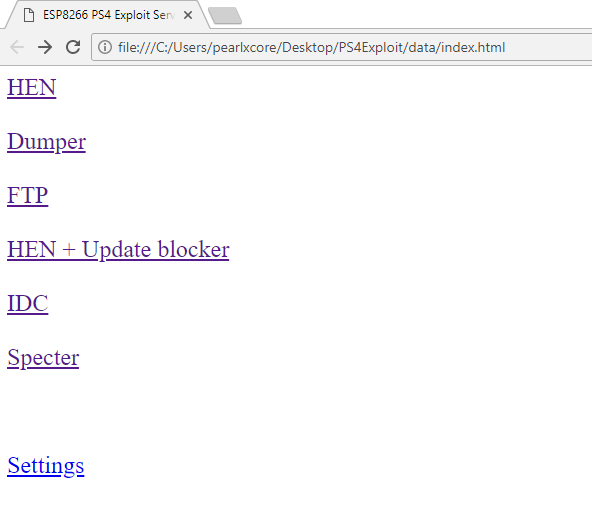
So how you add the payload of your choice?
Again I use treyjazz's sample webpage for this tutorial (in 'data' folder inside PS4Exploit).
- I suggest you download Notepad++ for code editing. Download and install.
- So now navigate to 'data' folder. You will see bunch of files (.js and .html) in it. The webpage you see on ESP8266 is coded in 'index.html'. So find 'index.html', right-click on it, click 'Edit with Notepad++'.
- Now double-click on 'index.html' and the page will open on your browser.
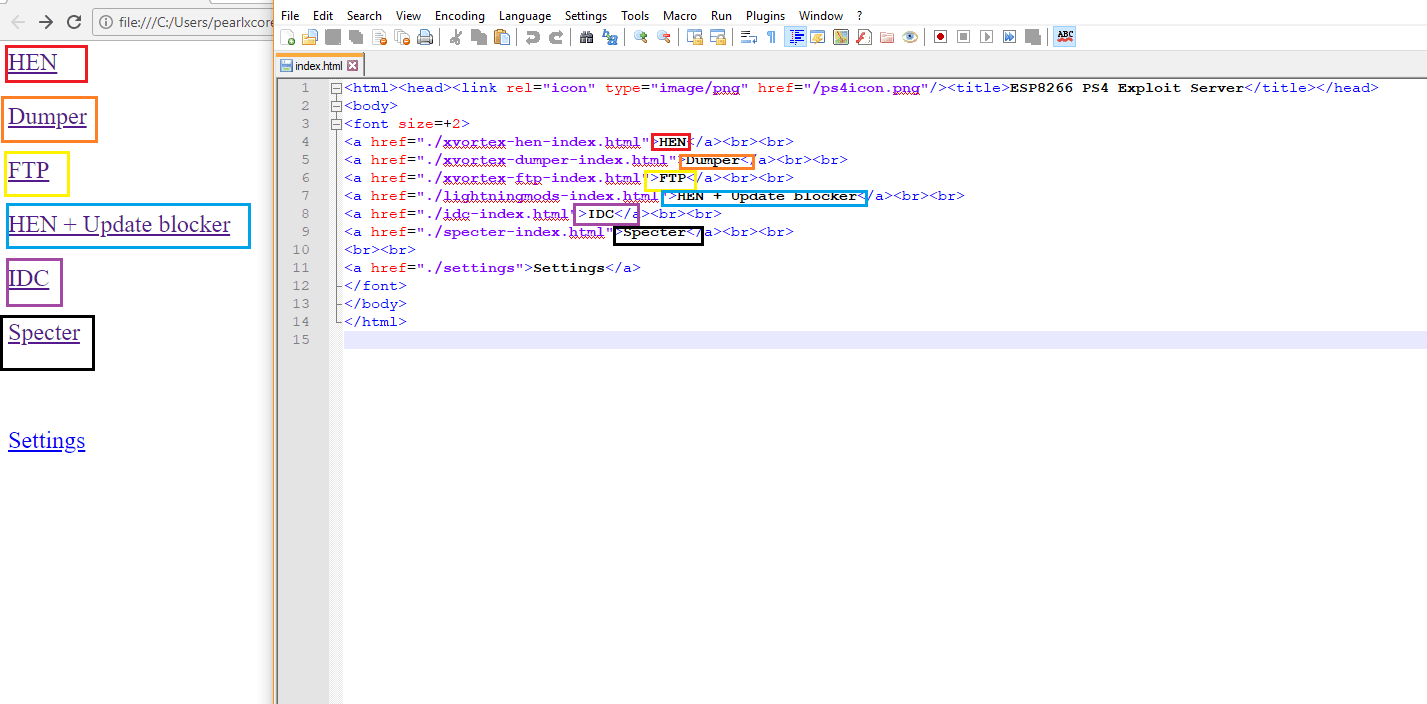
- Now compare side by side the code and the webpage
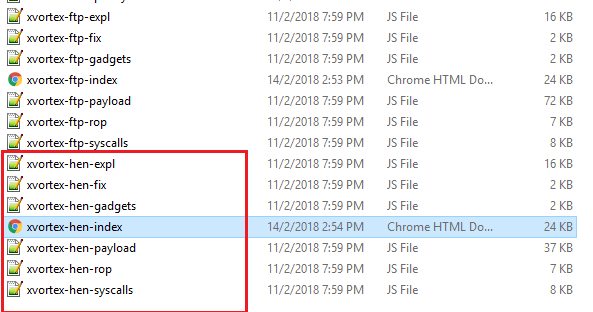
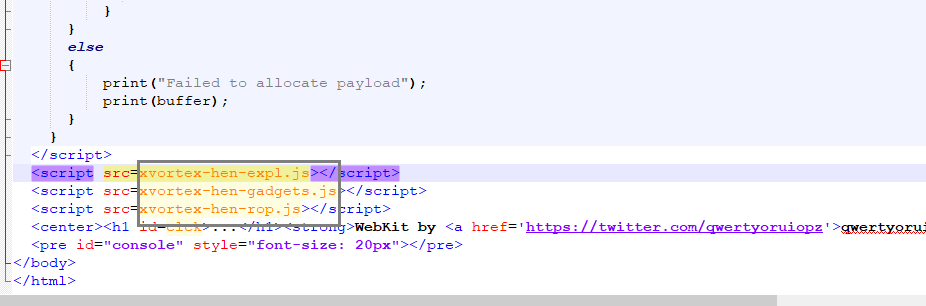
- You can now understand a bit the how its relate. In the code, those I highlighted in colour is the text showed in webpage. Each payload option has different index source. For example HEN is pointed to 'xvortex-hen-index.html'. So now find 'xvortex-hen-index.html' in the folder.
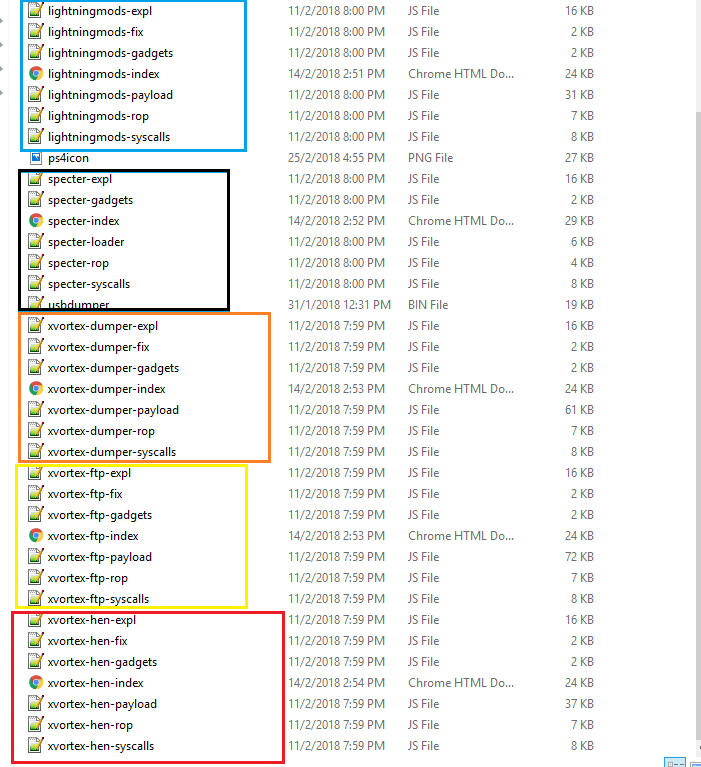
- You will see files with same name 'xvortex-hen-'. Those are the HEN exploit files required to exploit your PS4. And you see files with other name too
- The different name separate the exploit files so its not mix up.
- Ok back to our example, HEN exploit. Right-click on 'xvortex-hen-index.html' and scroll down to bottom.
- You can see some .js file mention in the code. It means the webpage calling the .js file during the execution of exploit. Each of payload type have it files to excute.
Code:
index.html
|
| (When you selected HEN)
|
xvortex-hen-index.html
|
|        (calling)
|
|-------------------------------
|xvortex-hen-expl.js           |
|xvortex-hen-gadgets.js        |
|xvortex-hen-rop.js            |
|xvortex-hen-payload.js        |
--------------------------------
|
|
HEN exploit done- 1st prepare...
How to Upload a Custom PS4 Playground Into ESP8266 Guide by Nzie
So here is a tutorial by me (nzie aka @pearlxcore) to upload your custom PS4 Playground into ESP8266 (I use treyjazz's file as sample).
WARNING : THIS TUTORIAL IS FULL OF IMAGES FOR YOUR UNDERSTANDING
What you need :
Instruction :
WARNING : THIS TUTORIAL IS FULL OF IMAGES FOR YOUR UNDERSTANDING
What you need :
Instruction :
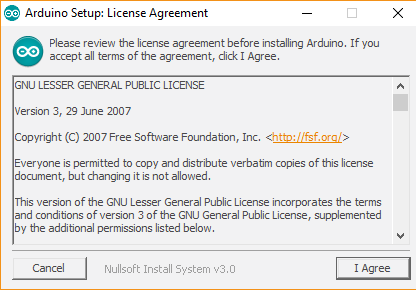
- Install Arduino IDE
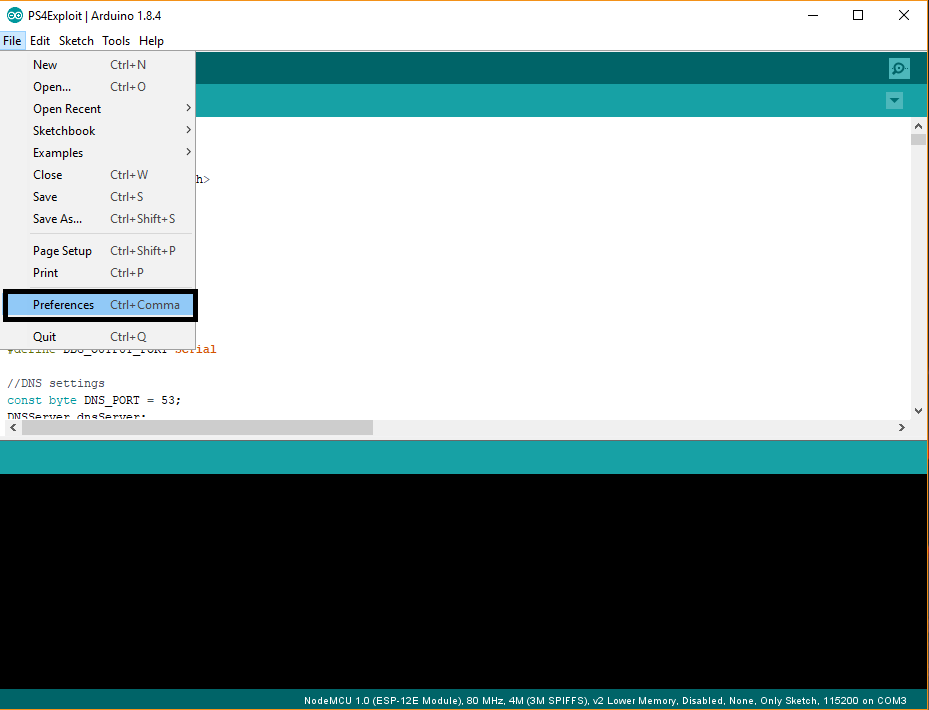
- Once installation is done, go to File -> Preferences
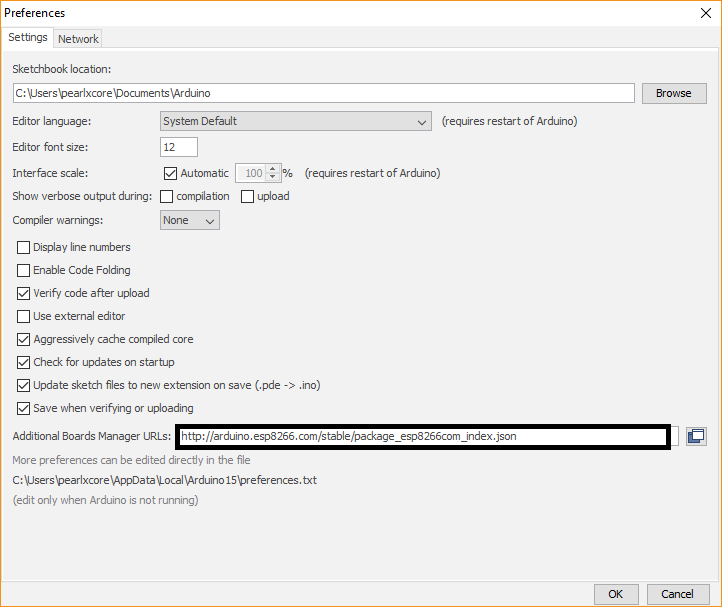
- Insert 'http://arduino.esp8266.com/stable/package_esp8266com_index.json' into Additional Boards Manager URL
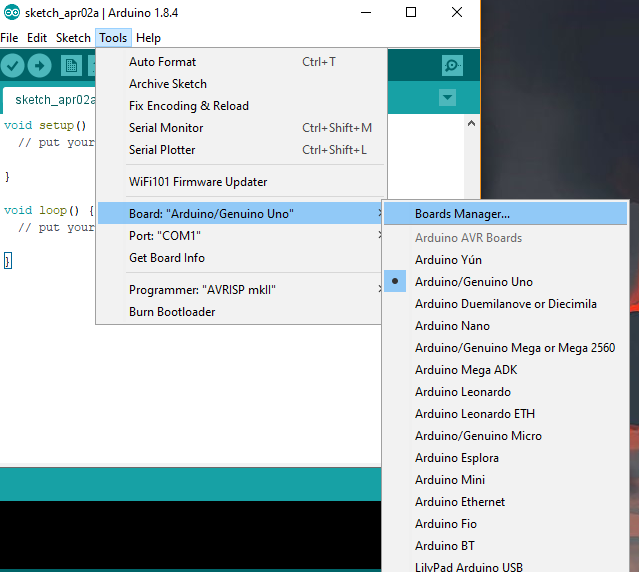
- Go to tools -> Board -> Boards Manager
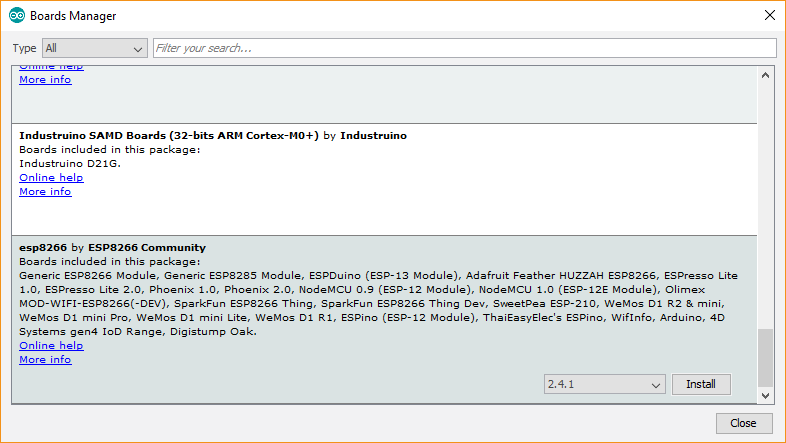
- Scroll down until you see ESP8266 and click install
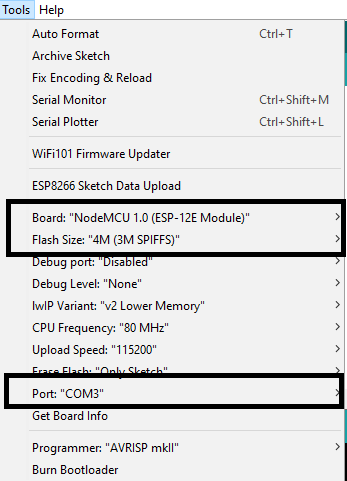
- Make sure you selected 'NodeMCU 1.0 (ESP-12E module)
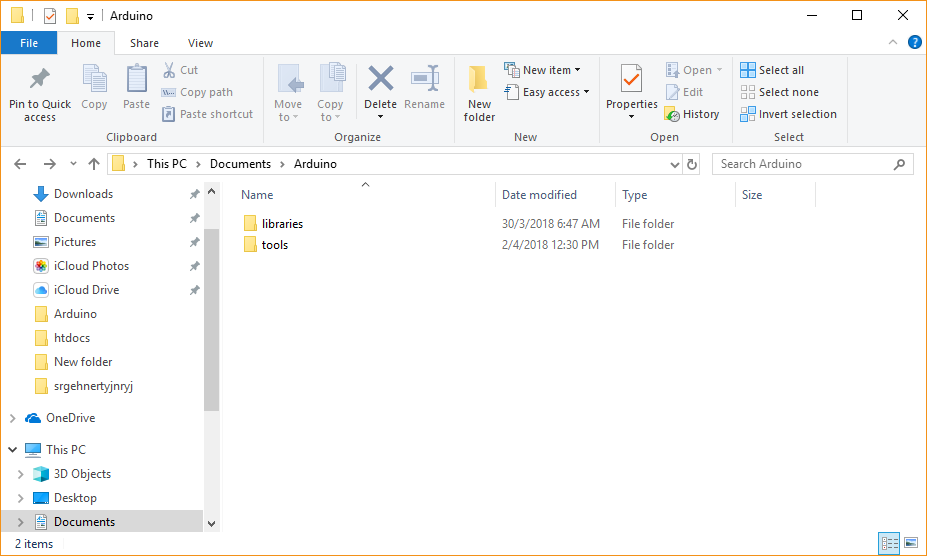
- Navigate to C:/Users/you-username/Documents/Arduino, make a new folder named 'tools'
- Inside 'tools' folder, extract 'ESP8266FS-0.2.0.zip' content so the directory will be like this -> C:\Users\your-usename\Documents\Arduino\tools\ESP8266FS\tool\esp8266fs.jar
- Now you have installed ESP8266 library and sketch uploader
- Restart Arduino IDE
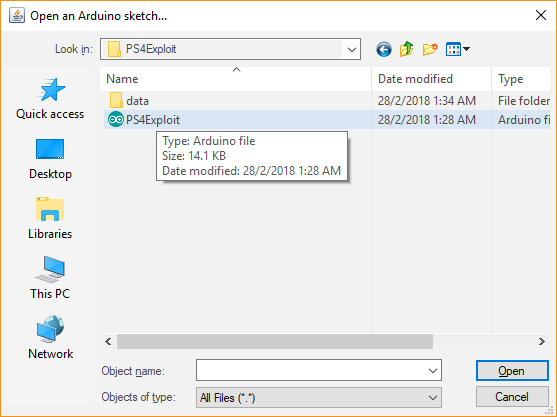
- Extract treyjazz's PS4Exploit files somewhere in your pc
- Go to Files -> Open -> navigate to the extracted files folder and select PS4Exploit.ino
- Make sure you select the right board, flash and port in 'Tools' tab
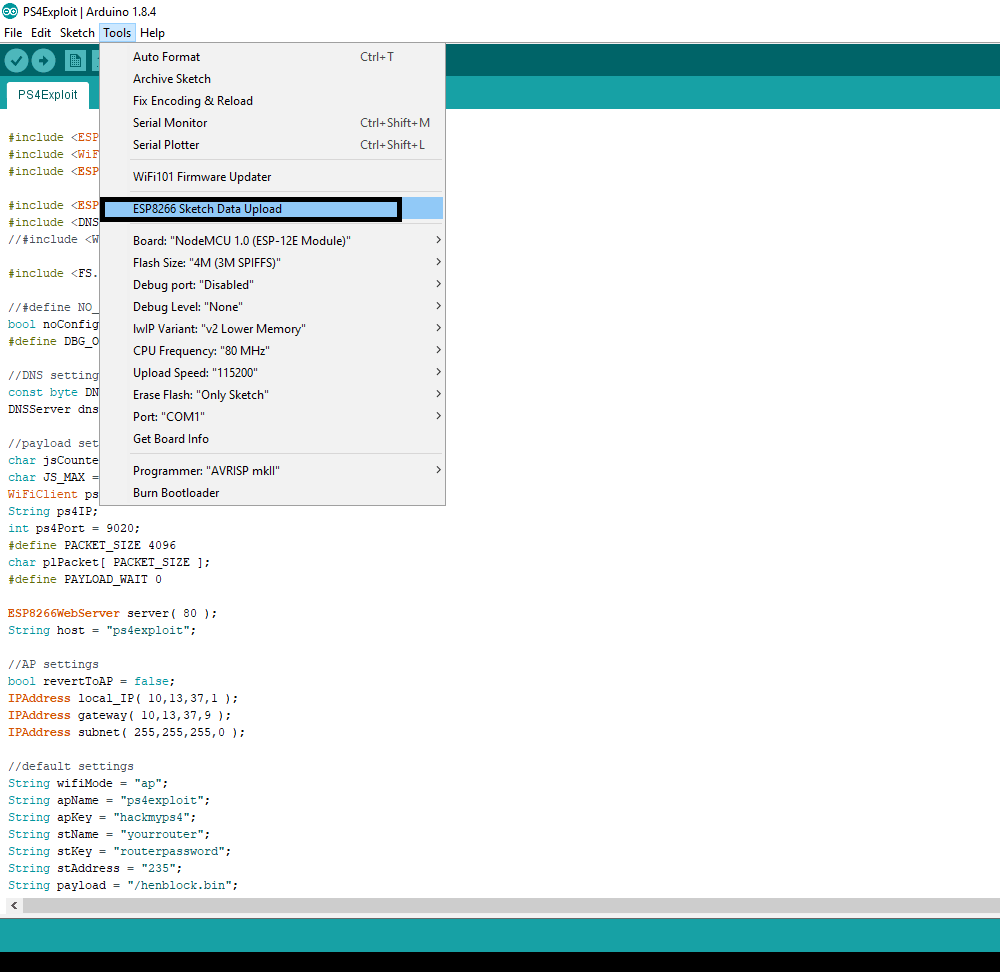
- Now click on 'ESP8266 Sketch Data Upload'
- It will compile the code and files. Wait until the progress reach 100%
- Go to 'Sketch' and click on 'Upload'. Wait until the progress reach 100%
- Once done you can take out ESP8266 and reinsert back to USB port.
- Now you can test the...
- PS4 Fake PKG (FPKG) Sharing Guide
- 6.XX Webkit / 6.72 PS4 Jailbreak
- 7.00-7.02 Webkit Exploit
- 7.02 Webkit / 7.02 Kernel / PS4JB
- 7.50 Kernel Exploit / PS4JB 7.55
- 7.55 / 8.00 Payloads / PS4JB2 7.55
- 9.00 PS4 Webkit Exploit
- 9.00 PS4 Payloads / GoldHEN (Latest)
- 9.00 PS4 Jailbreak Kernel Exploit
- 11.00 PS4 Jailbreak Kernel Exploit
- 13.00 PS4 Kernel Exploit / 13.02 BD-J Bug
- 4.03 PS5 Webkit Exploit
- PS5 Kernel Exploit (ExFAT Bug)
- PS5 Root Keys Obtained
- 4.03 PS5 Kernel Build String
- 4.03 PS5 Webkit Execution
- 4.03 PS5 Kernel Vulnerability
- 4.03 PS5 Filesystem Dumps
- 4.51 PS5 BD-JB Sandbox Escape
- PS5 BD-JB Exploit Hack Source Code
- Mast1c0re PS5 Userland Exploit
- PS5 Kernel Access via PS4 Exploit
- PS5 exFAT Vulnerability Disclosed
- 4.03 PS5 Kernel Exploit Webkit ROP
- 4.50 PS5 Kernel Exploit Webkit ROP
- 4.51 PS5 Kernel Exploit Webkit ROP
- 4.xx PS5 Kernel Exploit v1.01
- 4.xx PS5 Kernel Exploit v1.02 / v1.03
- PS5 1.00-6.50 Firmware Webkit
- Native PS5 ROP Chain Execution
- Mast1c0re PS5 Compiler Attack
- PS5 FreeBSD Kernel Bug & WebKit
- PS5 UMTX 2 Exploit & PS5 Jailbreak
- Byepervisor PS5 Hypervisor Exploit
- Lua Lapse PS5 Kxploit & Laps3c0re / Y2JB
- 12.00 / 12.70 PS5 Kernel Exploit