
You are using an out of date browser. It may not display this or other websites correctly.
You should upgrade or use an alternative browser.
You should upgrade or use an alternative browser.
Live in Your World, HAX in Ours!

Live in Your World, HAX in Ours!
Hello World! I've been reporting on Sony PlayStation hacking news since 2000 and started PSXHAX in 2014 to cover PlayStation (PSX), PlayStation 2 (PS2), PlayStation 3 (PS3), PlayStation 4 (PS4), PlayStation Portable (PSP), PlayStation Vita (PS Vita), PlayStation TV (PS TV) and next-gen PlayStation 5 (PS5) platforms along with anything else of interest.
Click on my UserName author link above and you'll be able to view a curated list of all the articles I've contributed thus far to PSXHAX.COM!
Click on my UserName author link above and you'll be able to view a curated list of all the articles I've contributed thus far to PSXHAX.COM!
Setting Up & Building Payload.bin for PS4 Playground Guide by KKE_RW
We've seen a number of PlayStation 4 payloads including the PS4 Permanent Internet Browser Payload and a PS4 FTP Payload, and today PlayStation 4 developer KKE_RW shared a guide on Setting Up and Building Payload.bin for PS4 Playground as detailed below. 
To quote: Tutorial: How To Setup And Build Payload.bin For PS4 Using PlayGround
Hope it helps and Thanks to me KKE_RW, Cturt and 2much4u
To quote: Tutorial: How To Setup And Build Payload.bin For PS4 Using PlayGround
Hope it helps and Thanks to me KKE_RW, Cturt and 2much4u
- KKE_RW For This Tutorial
- 2much4u For Helping Me Help You
- CTurt For His PS4-*** And Webkit
- kR105, flatz, SKFU, droogie, Xerpi, Hunger, Takezo, nas, Proxima
- VirtualBox
- Ubunto
- LLVM
- Binutils
- PS4-***
- Install VirtualBox
- When Installed Open Up Click New
- Type: Linux
- Version: 64bit
- Recommended Memory (768MB - 4000MB) # Up To You
- Create a Virtual Hard Disk
- VDI (VirtualBox Disk Image)
- Dynamically allocated
- Hit next then create...
- Right Click Open Settings/Storage
- Controller: IDE #there a Disk+ At side click on that.
- Choose Disk
- Find File Location Of Ubuntu #ISO FILE
- File Name "ubuntu-16.04.1-desktop-amd64"
- Now Click Start.. #you might get error i686 Easy Fix.
- How To Fix At The Bottom Of This Thread.
- Now You Will Need To Setup #Its Easy
- Ok So start it up And install it like windows...
- Make Sure Your Doing This On Ubuntu And Not On Your Window
- Search Your Computer #Top Left
- Find Terminal And Open It Type Command
- " sudo apt install llvm " Hit Enter
- When Done
- Type Command
- " sudo apt install binutils " Hit Enter
- When Done. Close.
Setting Up a USB 3.0 External HDD on PS4 Firmware 4.50 Guide
We've covered Upgrading a PS4 HDD, and beyond some Sasuke Crashes with the release of PS4 Firmware 4.50 Beta comes a guide on setting up a USB 3.0 external hard disk drive up to 8 Terabytes (TB) on PlayStation 4 Firmware 4.50 and above. 
Here are the PS4 External HDD Set Up Tutorial steps, to quote from the gurus at JustPushStart.com:
How To Use your External Hard Drive
To be able to use your external hard drive, make sure that the one you have is utilizes USB 3.0. You can either use the 3.5 External Hard Drive or those portable ones. In my case, I used Nyko’s Databank of the Xbox One to be the external hard drive of my PS4, equipped with an additional 1TB WD Green 3.5 hard drive.
Formatting your external hard drive is quite easy. Simply go to Settings and go to Devices. Under it, you’ll find USB Storage Devices.
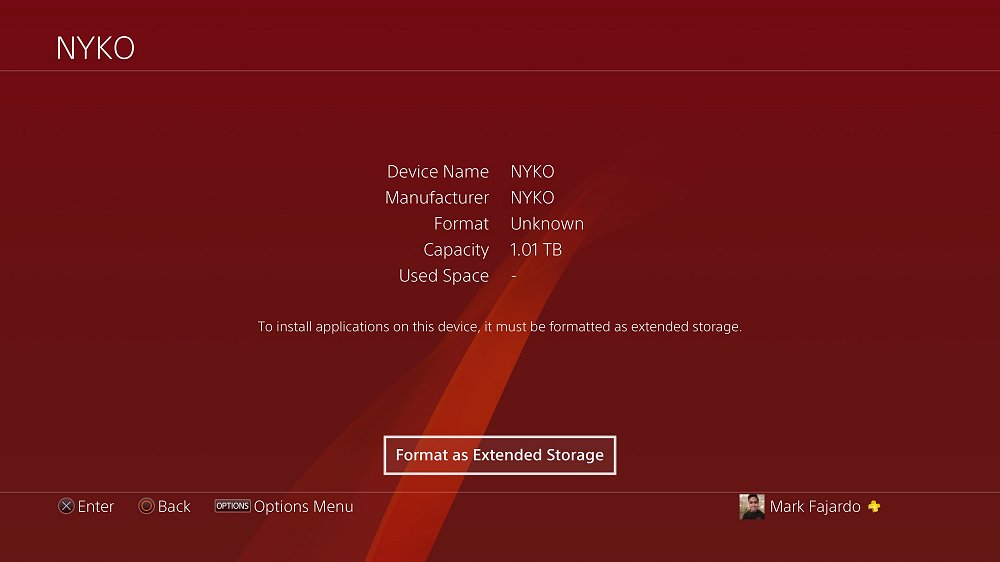
If you have multiple external hard drives hooked up on your PS4, find the ones you want to use. You’ll be then asked to format it.
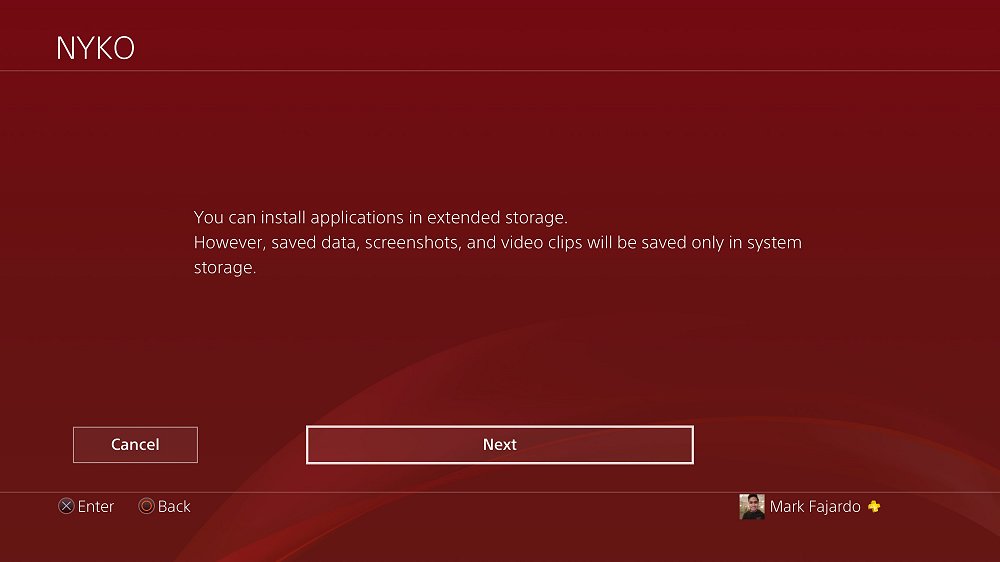
You’ll then go through the set-up process which is pretty quick.
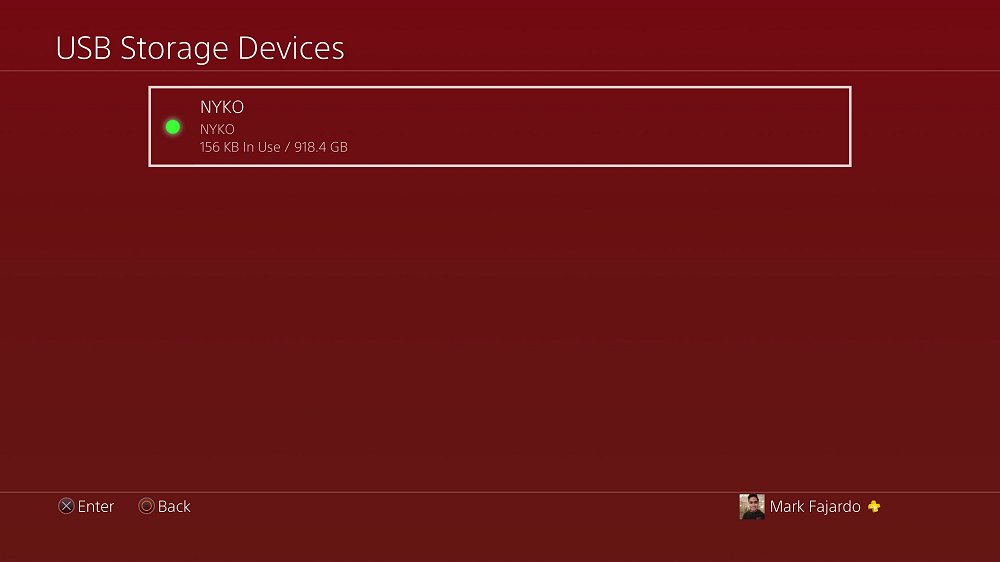
Once it’s done formatting, go back to the USB Storage Devices and you should see a green light icon beside the ones you formatted. If so, you are ready to use the hard drive!
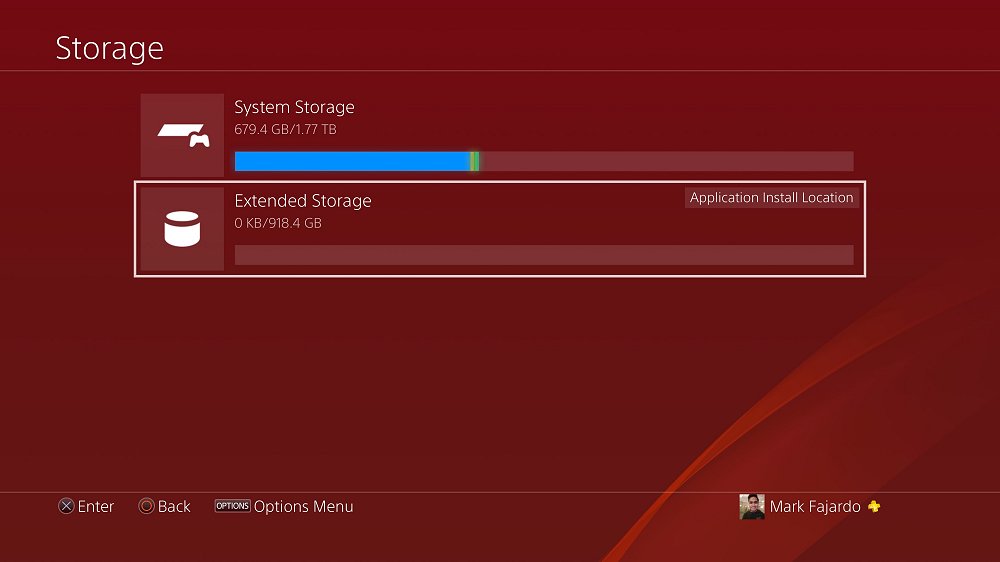
Now, you have the option to either use the hard drive you just formatted or simply keep installing applications on your internal storage until its full. To change the Applications Install location, simply highlight the hard drive of your choice, click the Options button from your DUALSHOCK 4 controller, and click confirm. You should see a text “Application Install Location” on the hard drive of your choice.
Please note that ONLY the applications and games are installed on the External Hard Drive. Save Datas and other internal files will be installed on the internal storage of your PS4.
Finally, from TheReverend210...
Here are the PS4 External HDD Set Up Tutorial steps, to quote from the gurus at JustPushStart.com:
How To Use your External Hard Drive
To be able to use your external hard drive, make sure that the one you have is utilizes USB 3.0. You can either use the 3.5 External Hard Drive or those portable ones. In my case, I used Nyko’s Databank of the Xbox One to be the external hard drive of my PS4, equipped with an additional 1TB WD Green 3.5 hard drive.
Formatting your external hard drive is quite easy. Simply go to Settings and go to Devices. Under it, you’ll find USB Storage Devices.
If you have multiple external hard drives hooked up on your PS4, find the ones you want to use. You’ll be then asked to format it.
You’ll then go through the set-up process which is pretty quick.
Once it’s done formatting, go back to the USB Storage Devices and you should see a green light icon beside the ones you formatted. If so, you are ready to use the hard drive!
Now, you have the option to either use the hard drive you just formatted or simply keep installing applications on your internal storage until its full. To change the Applications Install location, simply highlight the hard drive of your choice, click the Options button from your DUALSHOCK 4 controller, and click confirm. You should see a text “Application Install Location” on the hard drive of your choice.
Please note that ONLY the applications and games are installed on the External Hard Drive. Save Datas and other internal files will be installed on the internal storage of your PS4.
Finally, from TheReverend210...
PS3 sLaunch webMAN / webMAN MOD Frontend Preview by DeanK
Following the recent webMAN 1.46n and webMAN MOD 1.46.01 updates, PlayStation 3 multiMAN v04.81.02 developer @deank shared a PS3 sLaunch webMAN / webMAN MOD frontend preview 0.1 this weekend on his YouTube Channel with details, some demo videos and sMAN updates below. 
Download: slaunch_preview.zip (174 KB) / sman.sprx / sman_1.02.sprx (webMAN + sLaunch sMAN Plugin) / sMAN_1.00.zip (625 KB) / sMAN_1.01.zip (1.32 MB) / sMAN_1.02.zip (1.33 MB) / sMAN_1.05.zip (1.38 MB) / sMAN_1.07.zip (1.52 MB) / sMAN_1.08.zip (1.76 MB) / sMAN_1.10.zip (2.09 MB) / sMAN_1.11.zip (1.80 MB) / sMAN_1.12.zip (1.80 MB)
To quote from deank: It is just proof-of-concept, but if someone wishes to give it a try: http://deanbg.com/slaunch_preview.zip
You'll have to add slaunch.sprx to your boot_plugins.txt. It requires this new webMAN, so you'll have to use both. After you get your games refreshed at least once sLaunch will pick them up. To start sLaunch from XMB hold the "START" button.
This is a preview version and it will only show 1 page of 10 games, although all are detected. When I'm ready with this new interface it can become part of webMAN, so there will be no need for separate plugin, but for PoC it is what it is.
IMPORTANT: THIS TEST VERSION WORKS ONLY IN 1920x1080p/i (FullHD). Do not try it if your PS3 is set to different...
Download: slaunch_preview.zip (174 KB) / sman.sprx / sman_1.02.sprx (webMAN + sLaunch sMAN Plugin) / sMAN_1.00.zip (625 KB) / sMAN_1.01.zip (1.32 MB) / sMAN_1.02.zip (1.33 MB) / sMAN_1.05.zip (1.38 MB) / sMAN_1.07.zip (1.52 MB) / sMAN_1.08.zip (1.76 MB) / sMAN_1.10.zip (2.09 MB) / sMAN_1.11.zip (1.80 MB) / sMAN_1.12.zip (1.80 MB)
To quote from deank: It is just proof-of-concept, but if someone wishes to give it a try: http://deanbg.com/slaunch_preview.zip
You'll have to add slaunch.sprx to your boot_plugins.txt. It requires this new webMAN, so you'll have to use both. After you get your games refreshed at least once sLaunch will pick them up. To start sLaunch from XMB hold the "START" button.
This is a preview version and it will only show 1 page of 10 games, although all are detected. When I'm ready with this new interface it can become part of webMAN, so there will be no need for separate plugin, but for PoC it is what it is.
IMPORTANT: THIS TEST VERSION WORKS ONLY IN 1920x1080p/i (FullHD). Do not try it if your PS3 is set to different...
Gamer Choice Sony PSN ID Availability Tool by Luckeyy
Recently we saw some handy SendPSN Tools and now PlayStation 4 developer Dr. Luckeyy released a Gamer Choice Sony PSN ID Availability Tool that allows you to check whether a PSN ID is available or in use already on Sony's PlayStation Network when Creating an Account at your leisure.
Download: PSN ID Checker.rar (20.3 MB)
For those who are new to PlayStation Network and planning to register a PSN ID here are some tips from Sony that may be of use as well, to quote:
How do I choose my Online ID?
Please bear in mind the following when choosing your Online ID:
Download: PSN ID Checker.rar (20.3 MB)
For those who are new to PlayStation Network and planning to register a PSN ID here are some tips from Sony that may be of use as well, to quote:
How do I choose my Online ID?
Please bear in mind the following when choosing your Online ID:
- You cannot change your Online ID once it has been created, so choose carefully.
- Your Online ID must be three to 16 characters and can consist of letters, numbers, hyphens (-) and underscores (_).
- We recommend that you do not use an Online ID that might personally identify you to other users.
- We do not allow vulgar or offensive Online IDs that violate the Community Code of Conduct. If you have an offensive or vulgar Online ID you may find that your account or PlayStation system is banned in line with the Community Code of Conduct.
- You may find that your first few choices of Online ID have been chosen by another user. Be patient and make as many attempts as you need to until you are happy with your chosen Online ID - don’t forget you can’t change it once you’ve decided.
Nioh for PS4 Joins New PlayStation Games on February 7, 2017
This coming week you can find the way of the samurai as action RPG Nioh joins the new PlayStation games on PSN with a PlayStation 4 gameplay trailer video below. 
Here is the rest of the list straight from Ryan Clements, to quote:
New Releases: Week of February 7, 2017
PlayStation Music
Here is the rest of the list straight from Ryan Clements, to quote:
New Releases: Week of February 7, 2017
- 8Days - PS4 — Digital
- How to Survive 2 - PS4 — Digital (Out 2/6)
- Kitty Powers Matchmaker - PS4 — Digital
- Nioh - PS4 — Digital, Retail
- The Onion Knights - PS4 — Digital
- Ping Pong VR - PS VR — Digital
- So Many Me! - PS4 — Digital (Out 2/6)
- Super Gunworld 2 - PS4 — Digital
- Uncanny Valley - PS4, PS Vita — Digital (Cross Buy)
PlayStation Music
- Big Sean – I Decided
- Lower Than Atlantis – Safe in Sound
- Sampha – Process
- Hacksaw Ridge
- Moonlight
- APB | Season 1
- Puppy Bowl — February 5 at 3/2c (Animal Planet)
- Legion — February 8 at 10/9c (FX)
- Impractical Jokers — February 9 at 10/9c (truTV)
- PS4 Fake PKG (FPKG) Sharing Guide
- 6.XX Webkit / 6.72 PS4 Jailbreak
- 7.00-7.02 Webkit Exploit
- 7.02 Webkit / 7.02 Kernel / PS4JB
- 7.50 Kernel Exploit / PS4JB 7.55
- 7.55 / 8.00 Payloads / PS4JB2 7.55
- 9.00 PS4 Webkit Exploit
- 9.00 PS4 Payloads / GoldHEN (Latest)
- 9.00 PS4 Jailbreak Kernel Exploit
- 11.00 PS4 Jailbreak Kernel Exploit
- 13.00 PS4 Kernel Exploit / 13.02 BD-J Bug
- 4.03 PS5 Webkit Exploit
- PS5 Kernel Exploit (ExFAT Bug)
- PS5 Root Keys Obtained
- 4.03 PS5 Kernel Build String
- 4.03 PS5 Webkit Execution
- 4.03 PS5 Kernel Vulnerability
- 4.03 PS5 Filesystem Dumps
- 4.51 PS5 BD-JB Sandbox Escape
- PS5 BD-JB Exploit Hack Source Code
- Mast1c0re PS5 Userland Exploit
- PS5 Kernel Access via PS4 Exploit
- PS5 exFAT Vulnerability Disclosed
- 4.03 PS5 Kernel Exploit Webkit ROP
- 4.50 PS5 Kernel Exploit Webkit ROP
- 4.51 PS5 Kernel Exploit Webkit ROP
- 4.xx PS5 Kernel Exploit v1.01
- 4.xx PS5 Kernel Exploit v1.02 / v1.03
- PS5 1.00-6.50 Firmware Webkit
- Native PS5 ROP Chain Execution
- Mast1c0re PS5 Compiler Attack
- PS5 FreeBSD Kernel Bug & WebKit
- PS5 UMTX 2 Exploit & PS5 Jailbreak
- Byepervisor PS5 Hypervisor Exploit
- Lua Lapse PS5 Kxploit & Laps3c0re / Y2JB
- 12.00 / 12.70 PS5 Kernel Exploit