PSXHAX.COM website and domain for sale. Contact Us with your offer!

You are using an out of date browser. It may not display this or other websites correctly.
You should upgrade or use an alternative browser.
You should upgrade or use an alternative browser.
PSXHAX - PSXHACKS: PSX HAX - PSX HACKS - PLAYSTATION HAX - PLAYSTATION HACKS
PS4 3.15 Firmware Entry Point for Testing from Zecoxao
Following the recent PS4 Dlclose Exploit for 1.76 Firmware, today I'd like to share a talk between zecoxao and Zer0xFF on finding an entry point for testing with PS4 Firmware 3.15 and also 3.50.
@zecoxao seems to be working on an entry point for the PS4 3.15 FW and wants some testers
1. Entry point:
2. Entry point:
Also the the source code from the Webkit from Sony 
@zecoxao seems to be working on an entry point for the PS4 3.15 FW and wants some testers
1. Entry point:
Code:
<iframe></iframe><object onbeforeload="crash()">
    <script>
    if (window.testRunner) {
        testRunner.dumpAsText();
        testRunner.waitUntilDone();
    }

    function crash() {
        document.getElementsByTagName("iframe")[0].contentWindow.scrollX;
        document.open();
    }

    document.body.offsetLeft;
    setTimeout(function() {
        document.close();
        document.body.innerHTML = 'PASS if not crashed.';
        testRunner.notifyDone();
    }, 1);
    </script>
Code:
<input id="t1" type="time">
    <script>
    var time1 = document.getElementById('t1');
    document.addEventListener('beforeload', function(event) {
        time1.value = time1.value ? '' : '23:59';
    }, true);

    if (window.testRunner) {
        testRunner.dumpAsText();
        testRunner.waitUntilDone();
    }
    setTimeout(function() {
        document.body.innerHTML = 'PASS if not crashed.';
        testRunner.notifyDone();
    }, 100);
    time1.focus();
    </script>
<embed src="data:text/html,PASS"></embed>- EDIT / Update by B7U3 C50SS & source files from zecoxao & and a file server for accessing the PS4 Tests page - via, pasha4ur:
- You may also crash test your PS4 browser ATM on any FW from zecoxao's Github...
PS4Link Library Updated by BigBoss with LDR Creation and More!
Since the last revision, PlayStation 4 developer BigBoss has updated the PS4Link library which allows PS4 to communicate and utilize a host file system with the PS4Client host tool.
According to the developer, PS4Link is now updated with ldr creation and information to do it yourself
Download: ps4link-master.zip / PS4Link GIT
From the ReadMe file: PS4LINK FOR PS4
What does this do?
PS4Link is a group of tools (libps4link, libdebugnet, ps4sh) for PS4 and host. It is the same method that we used in ps2dev days, so basically it is the same protocol than ps2link and ps2client have been using since 2003.
Functions available are defined like native sce functions so it is easy for homebrew developer to use these new functions:
FILEIO functions
Remote Commands functions
1) execelf
This command let you load and exec elf files compiled with libps4. Check samples directory.
2) execsprx
Right now do nothing
3) execwhoami
Show you uid and gid
4) execshowdir
Let you list filenames in directory. With ftp server you will not need it
5) exitps4
Try to close ps4link resources. If you try to run ps4sh again when all is released you will get a messager saying that it can't connect. Now you can leave ps4 browser.
check ps4link_internal.h and commands.c to see how can you implements new commands
How do I use it?
1) Configure your environment:
You will need:
According to the developer, PS4Link is now updated with ldr creation and information to do it yourself
Download: ps4link-master.zip / PS4Link GIT
From the ReadMe file: PS4LINK FOR PS4
What does this do?
PS4Link is a group of tools (libps4link, libdebugnet, ps4sh) for PS4 and host. It is the same method that we used in ps2dev days, so basically it is the same protocol than ps2link and ps2client have been using since 2003.
Functions available are defined like native sce functions so it is easy for homebrew developer to use these new functions:
FILEIO functions
Code:
  int ps4LinkOpen(const char *file, int flags, int mode);
  int ps4LinkClose(int fd);
  int ps4LinkRead(int fd, void *data, size_t size);
  int ps4LinkWrite(int fd, const void *data, size_t size);
  int ps4LinkLseek(int fd, int offset, int whence);
  int ps4LinkRemove(const char *file);
  int ps4LinkMkdir(const char *dirname, int mode);
  int ps4LinkRmdir(const char *dirname);
  int ps4LinkDopen(const char *dirname);
  int ps4LinkDread(int fd, struct dirent *dir);
int ps4LinkDclose(int fd);1) execelf
This command let you load and exec elf files compiled with libps4. Check samples directory.
2) execsprx
Right now do nothing
3) execwhoami
Show you uid and gid
4) execshowdir
Let you list filenames in directory. With ftp server you will not need it
5) exitps4
Try to close ps4link resources. If you try to run ps4sh again when all is released you will get a messager saying that it can't connect. Now you can leave ps4 browser.
check ps4link_internal.h and commands.c to see how can you implements new commands
How do I use it?
1) Configure your environment:
You will need:
- [clang] 3.7 or upper i tested it on freebsd and osx. For osx :
For osx only (you will not need this for freebsd):
Downloading clang
Code:cd...
How to Run PS4 Linux Ubuntu Guide with Video Demo
Not far behind the PS4 Linux Install Guide comes another handy tutorial from fx0day (Twitter) covering how to run Ubuntu on PlayStation 4.
Check out the guide with a PS4 Running Linux Ubuntu demonstration video below!
To quote: We need:
So now you should have Ubuntu installed on your USB Hdd ...
Now go to the PS4-Playground and load Linux (you must have of course a USB key with bZimage & initramfs.cpio.gz in the PS4)
Now you should see better-initramfs shell ...
Plug the USB Hdd where you have your ubuntu install (At this point you can remove the USB key with bZimage & initramfs.cpio.gz everything is in RAM)
Type fdisk -l to see the name of your USB Hdd ( /dev/sdXX)
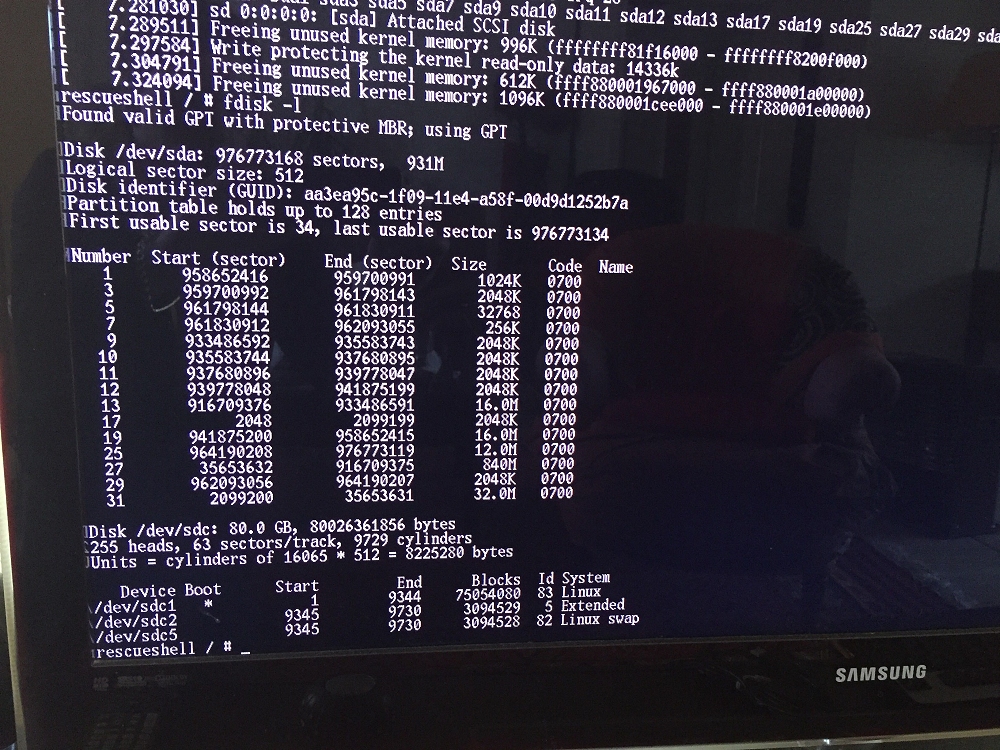
As you can see my ubuntu partition is in /dev/sdc1
Now just type (if your bootable partition is sdc1)
Sometimes exec switch_root don't start at the first time , just type the command again .. Wait a few seconds and you should see Ubuntu running
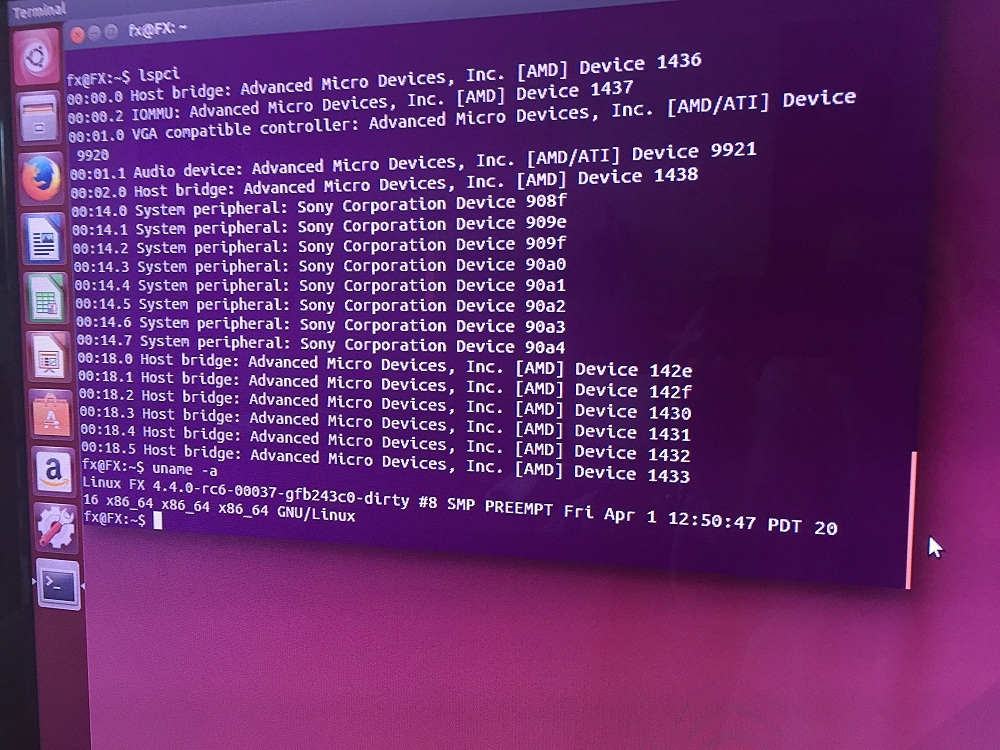
Keep in mind that there's no network working yet
PS4 Running Linux Ubuntu
How to Run Ubuntu on a PS4 with 1 USB Stick
Check out the guide with a PS4 Running Linux Ubuntu demonstration video below!
To quote: We need:
- 1 PS4 FW 1.76
- 1 USB Hdd or a USB Key big enough to install Ubuntu
- Download the ISO
- Copy the iso to Usb with a tool like unetbootin (Win/Mac/Linux) (You can burn on a DVD also)
- Boot on this USB or DVD
- Launch Install on your USB HDD or USB key (you can make small partition in Fat32 for Bzimage and initramfs) and the rest in Ext4
So now you should have Ubuntu installed on your USB Hdd ...
Now go to the PS4-Playground and load Linux (you must have of course a USB key with bZimage & initramfs.cpio.gz in the PS4)
Now you should see better-initramfs shell ...
Plug the USB Hdd where you have your ubuntu install (At this point you can remove the USB key with bZimage & initramfs.cpio.gz everything is in RAM)
Type fdisk -l to see the name of your USB Hdd ( /dev/sdXX)
As you can see my ubuntu partition is in /dev/sdc1
Now just type (if your bootable partition is sdc1)
Code:
mount /dev/sdc1 newroot/
exec switch_root /newroot/ /newroot/sbin/initKeep in mind that there's no network working yet
PS4 Running Linux Ubuntu
How to Run Ubuntu on a PS4 with 1 USB Stick
PlayStation Vita System Software 3.60 Update is Now Live
It's only been a few months since Sony's last update, and today in conjunction with PS4 Firmware 3.50 they have also released PS Vita System Software update 3.60 for PlayStation Vita handheld console owners.
Download: PS Vita Firmware 3.60 Update (US) / PS Vita Firmware 3.60 Update (EU) / PS Vita Firmware 3.60 Update (JP)
According to Sony's official site, the changes are simply as follows:
PlayStation Vita and PlayStation TV System Software Update 3.60
Main features in system software update version 3.60:
Vita IDA PhysDump
Vita 3.60 physical dump loader for IDA
Download: vita-ida-physdump-master.zip / GIT
Installation
Copy contents of this directory into your IDA 7.0/loaders directory.
Place db.yml into the directory with your physical dump.
Usage
Obtain a physical memory dump from a Vita running 3.60 (other versions are not supported).
You should dump physical addresses in the [0x40200000; 0x5FD00000) range. (wiki)
When opening a physical dump, this loader should be selected by default. You don't need to do anything, just click "OK".
Features
Download: PS Vita Firmware 3.60 Update (US) / PS Vita Firmware 3.60 Update (EU) / PS Vita Firmware 3.60 Update (JP)
According to Sony's official site, the changes are simply as follows:
PlayStation Vita and PlayStation TV System Software Update 3.60
Main features in system software update version 3.60:
- This system software update improves system performance.
Vita IDA PhysDump
Vita 3.60 physical dump loader for IDA
Download: vita-ida-physdump-master.zip / GIT
Installation
Copy contents of this directory into your IDA 7.0/loaders directory.
Place db.yml into the directory with your physical dump.
Usage
Obtain a physical memory dump from a Vita running 3.60 (other versions are not supported).
You should dump physical addresses in the [0x40200000; 0x5FD00000) range. (wiki)
When opening a physical dump, this loader should be selected by default. You don't need to do anything, just click "OK".
Features
- Physical dump loading
- Modules are found and detected with import/export parsing
- db.yml from vitasdk used for NID resolving
- A comment is added to every exported function...
PlayStation 3.50 System Software Update Incoming, PS4 Video Demo
So tomorrow the next PS4 3.50 Musashi Update will be released according to Sony's Product Manager Jayne Murphy
Download: PS4 Firmware 3.50 Update (US) / PS4 Firmware 3.50 Update (EU) / PS4 Firmware 3.50 Update (UK) / PS4 Firmware 3.50 Update (AU/NZ) / PS4 Firmware 3.50 Update (JP) / PS4 Remote Play Client (Windows / Mac) / PS4 3.50 Firmware Hidden Features
Here's what to expect in PlayStation 3.50 System Software with a PS4 video demo below, to quote:
Our next major system software update for PS4, version 3.50 (codenamed MUSASHI), is out tomorrow! For those of you participating in the beta, we hope you are enjoying the new features and thank you for your ongoing feedback.
While we outlined some of the features last month before our beta program started, we wanted to give a more detailed look at the update and share some new info. With 3.50 it is now easier to play together with friends through new ways to connect, improvements to existing features and the user journey.
Appear Offline
On your Profile tab, Quick Menu and login screen, we’ve added a new option called ‘Online Status.’ From here, you can choose to ‘Appear Offline.’ This could be useful if, for example, you want to fully concentrate on your game or watch a movie without interruption. You will remain ‘offline’ until you chose to change your...
Download: PS4 Firmware 3.50 Update (US) / PS4 Firmware 3.50 Update (EU) / PS4 Firmware 3.50 Update (UK) / PS4 Firmware 3.50 Update (AU/NZ) / PS4 Firmware 3.50 Update (JP) / PS4 Remote Play Client (Windows / Mac) / PS4 3.50 Firmware Hidden Features
Here's what to expect in PlayStation 3.50 System Software with a PS4 video demo below, to quote:
Our next major system software update for PS4, version 3.50 (codenamed MUSASHI), is out tomorrow! For those of you participating in the beta, we hope you are enjoying the new features and thank you for your ongoing feedback.
While we outlined some of the features last month before our beta program started, we wanted to give a more detailed look at the update and share some new info. With 3.50 it is now easier to play together with friends through new ways to connect, improvements to existing features and the user journey.
Appear Offline
On your Profile tab, Quick Menu and login screen, we’ve added a new option called ‘Online Status.’ From here, you can choose to ‘Appear Offline.’ This could be useful if, for example, you want to fully concentrate on your game or watch a movie without interruption. You will remain ‘offline’ until you chose to change your...
- PS4 Fake PKG (FPKG) Sharing Guide
- 6.XX Webkit / 6.72 PS4 Jailbreak
- 7.00-7.02 Webkit Exploit
- 7.02 Webkit / 7.02 Kernel / PS4JB
- 7.50 Kernel Exploit / PS4JB 7.55
- 7.55 / 8.00 Payloads / PS4JB2 7.55
- 9.00 PS4 Webkit Exploit
- 9.00 PS4 Payloads / GoldHEN (Latest)
- 9.00 PS4 Jailbreak Kernel Exploit
- 11.00 PS4 Jailbreak Kernel Exploit
- 13.00 PS4 Kernel Exploit / 13.02 BD-J Bug
- 4.03 PS5 Webkit Exploit
- PS5 Kernel Exploit (ExFAT Bug)
- PS5 Root Keys Obtained
- 4.03 PS5 Kernel Build String
- 4.03 PS5 Webkit Execution
- 4.03 PS5 Kernel Vulnerability
- 4.03 PS5 Filesystem Dumps
- 4.51 PS5 BD-JB Sandbox Escape
- PS5 BD-JB Exploit Hack Source Code
- Mast1c0re PS5 Userland Exploit
- PS5 Kernel Access via PS4 Exploit
- PS5 exFAT Vulnerability Disclosed
- 4.03 PS5 Kernel Exploit Webkit ROP
- 4.50 PS5 Kernel Exploit Webkit ROP
- 4.51 PS5 Kernel Exploit Webkit ROP
- 4.xx PS5 Kernel Exploit v1.01
- 4.xx PS5 Kernel Exploit v1.02 / v1.03
- PS5 1.00-6.50 Firmware Webkit
- Native PS5 ROP Chain Execution
- Mast1c0re PS5 Compiler Attack
- PS5 FreeBSD Kernel Bug & WebKit
- PS5 UMTX 2 Exploit & PS5 Jailbreak
- Byepervisor PS5 Hypervisor Exploit
- Lua Lapse PS5 Kxploit & Laps3c0re / Y2JB
- 12.00 / 12.70 PS5 Kernel Exploit