PSXHAX.COM website and domain for sale. Contact Us with your offer!

You are using an out of date browser. It may not display this or other websites correctly.
You should upgrade or use an alternative browser.
You should upgrade or use an alternative browser.
How to Boot OrbisOS on VMware Workstation PS4 Tutorial by RjMan
This weekend PlayStation 4 developer RjMan shared a PS4 tutorial covering how to boot OrbisOS on VMware Workstation with the scene as detailed below.
To quote: Boot OrbisOS on VM
Hi, from this guide its also working on VM workstation.
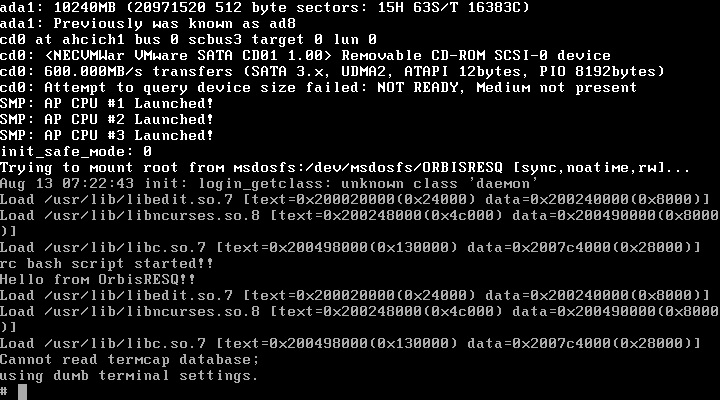
I'm able to boot Orbis but keyboard isn't working, also able to run scripts when try boot from rootfs of the orbisresq
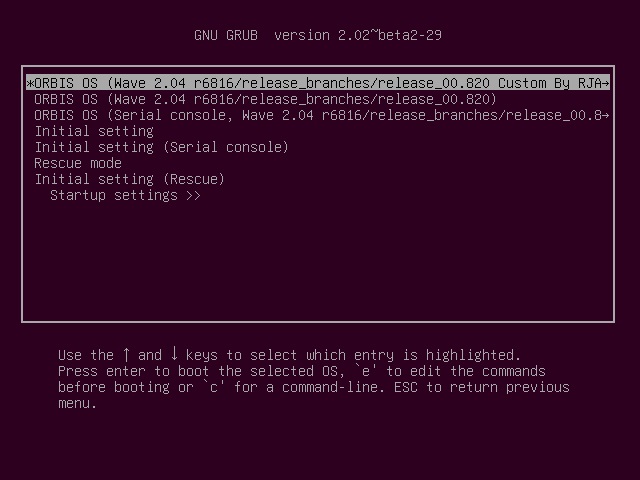
Here is my setup with Ubuntu 15:
Setup:

Thanks to @toni1988 for the news tip in the PSXHAX Shoutbox!
To quote: Boot OrbisOS on VM
Hi, from this guide its also working on VM workstation.
I'm able to boot Orbis but keyboard isn't working, also able to run scripts when try boot from rootfs of the orbisresq
Here is my setup with Ubuntu 15:
Setup:
- installed ubuntu on vmware workstation
- 8Gb ram at least
- add 3 virtual hdd's
- 1 ubuntu ext4
- 2 orbisos fat32
- 3 orbis rescue fat 32 with Disk Label "ORBISRESQ" (orbis will try load this rootfs)
- boot the linux copy all adm folder content from the OrbisOS zIP
- add this to the /etc/grub.d/40.custom file:
Code:menuentry "Load ps4 config" { set root=(hd1,msdos1) configfile /grub2_200.cfg } - update-grub
- reboot
- switch to orbis menu
Thanks to @toni1988 for the news tip in the PSXHAX Shoutbox!
How to Bypass PFS Protection PlayStation 4 Tutorial by Zecoxao
Today PlayStation 4 developer zecoxao shared a PS4 tutorial on how to bypass Sony PFS (PlayStation File System) protection entirely with other devs... check it out below! 
To quote: How to "bypass" pfs protection entirely
Things needed:
1- Go to http://www.extreme-modding.de/PS4/1.76/Playground/index.html and select the FTP Server (big Silver Star)
2- Enable it and minimize the browser
3- Start the game you want to copy/modify pfs content
4- Keep the game running (i believe this is the issue people are having)
5- Start your favourite ftp client
6- Navigate to:
where [TITLE-ID] is the id of the game you're running.
7- From there you can dump and modify files at will
I originally wondered if there was a way to do pfs bypass with the app.db so i asked around to see what would people say. Credits to flatz for the original idea.
PS:
contains the entire file listing (and also the files) in a big .dat file. You can also use it but you'll need an extractor later.
Now the eboot.bin protection is left to "crack". let's see how this plays out.
Thanks to @B7U3 C50SS for the news in the Shoutbox!
To quote: How to "bypass" pfs protection entirely
Things needed:
- PS4 on 1.76
- Disc game or PSN game activated on the console
- TITLE ID of the Game in question
- http://www.extreme-modding.de/PS4/1.76/Playground/index.html (the FTP Server + Debug Settings part)
- FTP client (filezilla or something like that)
- Brains you can use
1- Go to http://www.extreme-modding.de/PS4/1.76/Playground/index.html and select the FTP Server (big Silver Star)
2- Enable it and minimize the browser
3- Start the game you want to copy/modify pfs content
4- Keep the game running (i believe this is the issue people are having)
5- Start your favourite ftp client
6- Navigate to:
Rich (BB code):
/mnt/sandbox/pfsmnt/[TITLE-ID]-app07- From there you can dump and modify files at will
I originally wondered if there was a way to do pfs bypass with the app.db so i asked around to see what would people say. Credits to flatz for the original idea.
PS:
Code:
/mnt/sandbox/pfsmnt/[TITLE-ID]-app0-nestNow the eboot.bin protection is left to "crack". let's see how this plays out.
Thanks to @B7U3 C50SS for the news in the Shoutbox!
Native Linux / PS4 Development on Windows Tutorial by Kiwidog
Yesterday we reported on the HENkaku PS4 Exploit port and now Kiwidog shared a Native Linux / PS4 Development on Windows Tutorial with other PlayStation 4 developers!
Here are some recent Tweets from A-Town Thomas as diwidog:
And below is an introduction from the PlayStation 4 development on Windows tutorial, to quote:
"If you are like me, you hate developing on Linux. Nothing beats Microsoft’s Visual Studio, nothing. Recently with the Windows 10 Anniversary update you have WSL or Windows Subsystem for Linux, as excited as I was for this to come out Visual Studio is a “slow” adopter of this technology and I currently spent many hours poking and tweaking things until I got them right. So here it is, a full tutorial on how to get PlayStation 4 development going on Windows.
Note: This is not using any of Sony’s official software development kit, and is free for anyone to use.
Before I begin, I would like to personally thank Marc Goodner and the Visual Studio C++ for Linux development team. Without them and the WSL team none of this would have been possible.
At the time of this writing you will need the 1.0.5 or higher VS C++ for Linux which has not been...
Here are some recent Tweets from A-Town Thomas as diwidog:
And below is an introduction from the PlayStation 4 development on Windows tutorial, to quote:
"If you are like me, you hate developing on Linux. Nothing beats Microsoft’s Visual Studio, nothing. Recently with the Windows 10 Anniversary update you have WSL or Windows Subsystem for Linux, as excited as I was for this to come out Visual Studio is a “slow” adopter of this technology and I currently spent many hours poking and tweaking things until I got them right. So here it is, a full tutorial on how to get PlayStation 4 development going on Windows.
Note: This is not using any of Sony’s official software development kit, and is free for anyone to use.
Before I begin, I would like to personally thank Marc Goodner and the Visual Studio C++ for Linux development team. Without them and the WSL team none of this would have been possible.
At the time of this writing you will need the 1.0.5 or higher VS C++ for Linux which has not been...
How to Install Steam (Not SteamOS) on PS4 Linux Guide by OsirisX
Previously we reported on news of a Steam PS4 Linux demo video, and today @Osirisx returns with a guide on how to install Steam (not SteamOS) on PlayStation 4 Linux for those interested! 
You can find it below, to quote from OsirisX: Installing Steam on PS4 Linux
This guide is WIP and more pics will follow.
You may have seen my video running Steam on the PS4 and this tutorial will explain the procedure. Originally I intended to use Ubuntu for this guide since there's already a tutorial for that but I was having problems enabling graphics acceleration. Instead I chose Fedora which seems to work fine.
Required Hardware:
1. PS4 with FW 1.76
2. USB disk with at least 8 GB
Required Downloads:
1. Fedora-Live-Workstation-x86_64-23-10.iso
2. ps4-radeon-rpms.zip
3. bZimage & initramfs.cpio.gz
4. VirtualBox
Boot up Fedora using VirtualBox (with your usb disk attached) and wait until it reaches the welcome screen.
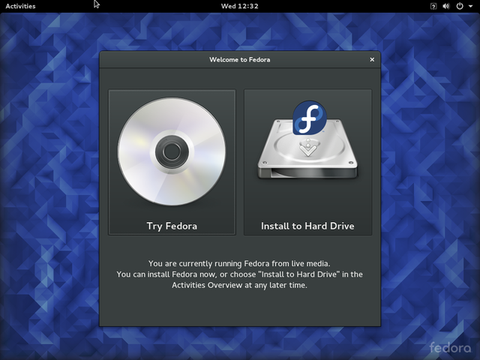
Before we actually install Fedora, we need to partition the usb disk. Open up a terminal and type the following the commands.
Find your usb disk location (Ex: /dev/sda) and use parted to partition it.
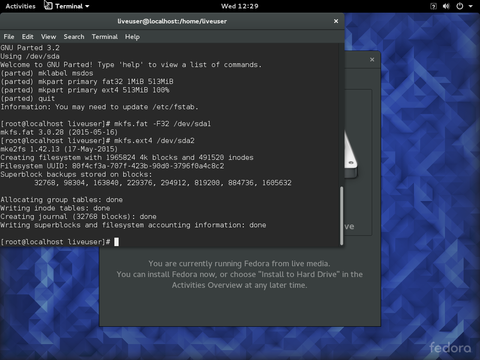
Keeping the terminal open, go back to the welcome screen and click “Install to Hard Drive”. Click on “Installation Destination” once the summary page comes up.
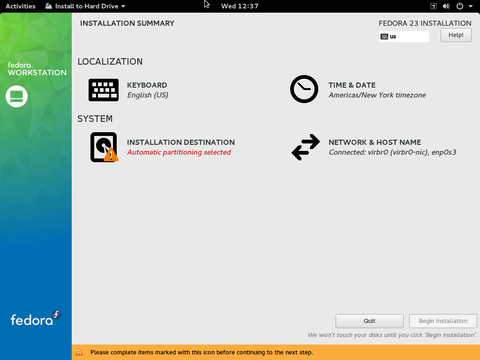
Select your disk and click on “I will configure partitioning” under storage options. Then click “Done”.
[ATTACH type="full"...
You can find it below, to quote from OsirisX: Installing Steam on PS4 Linux
This guide is WIP and more pics will follow.
You may have seen my video running Steam on the PS4 and this tutorial will explain the procedure. Originally I intended to use Ubuntu for this guide since there's already a tutorial for that but I was having problems enabling graphics acceleration. Instead I chose Fedora which seems to work fine.
Required Hardware:
1. PS4 with FW 1.76
2. USB disk with at least 8 GB
Required Downloads:
1. Fedora-Live-Workstation-x86_64-23-10.iso
2. ps4-radeon-rpms.zip
3. bZimage & initramfs.cpio.gz
4. VirtualBox
Boot up Fedora using VirtualBox (with your usb disk attached) and wait until it reaches the welcome screen.
Before we actually install Fedora, we need to partition the usb disk. Open up a terminal and type the following the commands.
Code:
su
fdisk -l
Code:
parted /dev/sda
mklabel msdos
mkpart primary fat32 1MiB 513MiB
mkpart primary ext4 513MiB 100%
quit
mkfs.fat -F32 /dev/sda1
mkfs.ext4 /dev/sda2
Keeping the terminal open, go back to the welcome screen and click “Install to Hard Drive”. Click on “Installation Destination” once the summary page comes up.
Select your disk and click on “I will configure partitioning” under storage options. Then click “Done”.
[ATTACH type="full"...
How to Run PS4 Linux Ubuntu Guide with Video Demo
Not far behind the PS4 Linux Install Guide comes another handy tutorial from fx0day (Twitter) covering how to run Ubuntu on PlayStation 4.
Check out the guide with a PS4 Running Linux Ubuntu demonstration video below!
To quote: We need:
So now you should have Ubuntu installed on your USB Hdd ...
Now go to the PS4-Playground and load Linux (you must have of course a USB key with bZimage & initramfs.cpio.gz in the PS4)
Now you should see better-initramfs shell ...
Plug the USB Hdd where you have your ubuntu install (At this point you can remove the USB key with bZimage & initramfs.cpio.gz everything is in RAM)
Type fdisk -l to see the name of your USB Hdd ( /dev/sdXX)
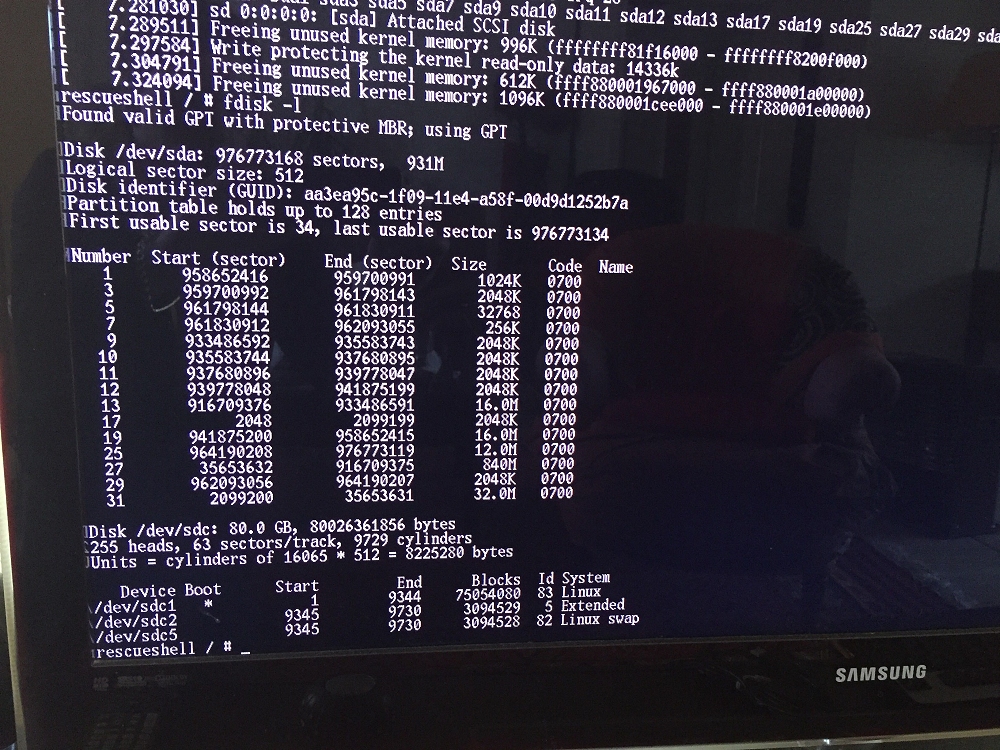
As you can see my ubuntu partition is in /dev/sdc1
Now just type (if your bootable partition is sdc1)
Sometimes exec switch_root don't start at the first time , just type the command again .. Wait a few seconds and you should see Ubuntu running
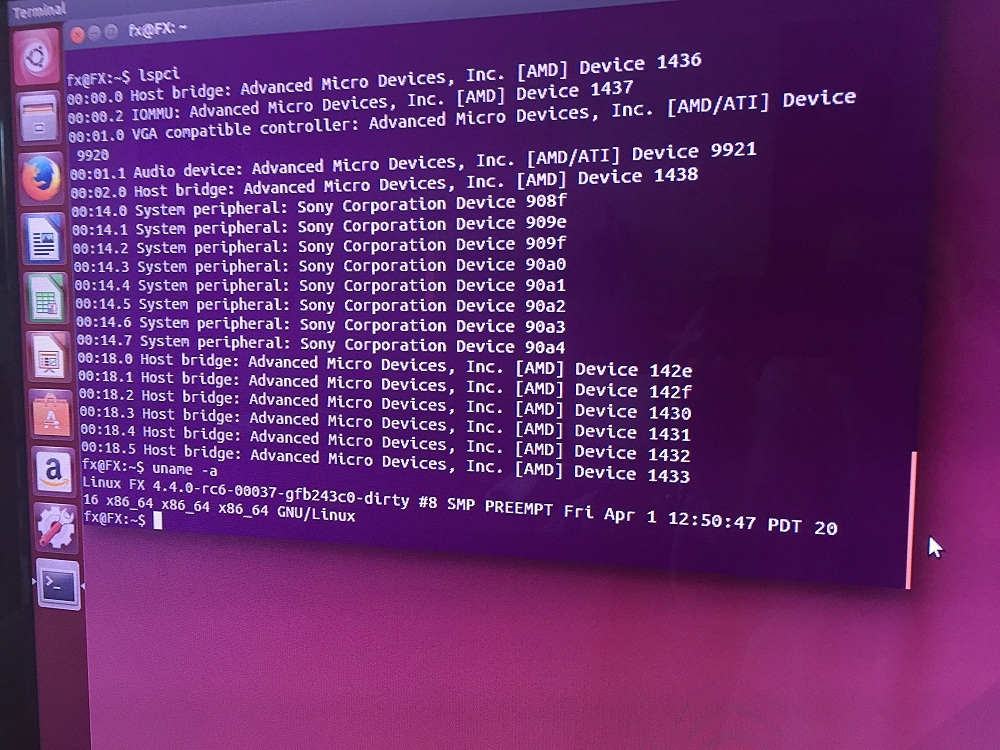
Keep in mind that there's no network working yet
PS4 Running Linux Ubuntu
How to Run Ubuntu on a PS4 with 1 USB Stick
Check out the guide with a PS4 Running Linux Ubuntu demonstration video below!
To quote: We need:
- 1 PS4 FW 1.76
- 1 USB Hdd or a USB Key big enough to install Ubuntu
- Download the ISO
- Copy the iso to Usb with a tool like unetbootin (Win/Mac/Linux) (You can burn on a DVD also)
- Boot on this USB or DVD
- Launch Install on your USB HDD or USB key (you can make small partition in Fat32 for Bzimage and initramfs) and the rest in Ext4
So now you should have Ubuntu installed on your USB Hdd ...
Now go to the PS4-Playground and load Linux (you must have of course a USB key with bZimage & initramfs.cpio.gz in the PS4)
Now you should see better-initramfs shell ...
Plug the USB Hdd where you have your ubuntu install (At this point you can remove the USB key with bZimage & initramfs.cpio.gz everything is in RAM)
Type fdisk -l to see the name of your USB Hdd ( /dev/sdXX)
As you can see my ubuntu partition is in /dev/sdc1
Now just type (if your bootable partition is sdc1)
Code:
mount /dev/sdc1 newroot/
exec switch_root /newroot/ /newroot/sbin/initKeep in mind that there's no network working yet
PS4 Running Linux Ubuntu
How to Run Ubuntu on a PS4 with 1 USB Stick
- PS4 Fake PKG (FPKG) Sharing Guide
- 6.XX Webkit / 6.72 PS4 Jailbreak
- 7.00-7.02 Webkit Exploit
- 7.02 Webkit / 7.02 Kernel / PS4JB
- 7.50 Kernel Exploit / PS4JB 7.55
- 7.55 / 8.00 Payloads / PS4JB2 7.55
- 9.00 PS4 Webkit Exploit
- 9.00 PS4 Payloads / GoldHEN (Latest)
- 9.00 PS4 Jailbreak Kernel Exploit
- 11.00 PS4 Jailbreak Kernel Exploit
- 13.00 PS4 Kernel Exploit / 13.02 BD-J Bug
- 4.03 PS5 Webkit Exploit
- PS5 Kernel Exploit (ExFAT Bug)
- PS5 Root Keys Obtained
- 4.03 PS5 Kernel Build String
- 4.03 PS5 Webkit Execution
- 4.03 PS5 Kernel Vulnerability
- 4.03 PS5 Filesystem Dumps
- 4.51 PS5 BD-JB Sandbox Escape
- PS5 BD-JB Exploit Hack Source Code
- Mast1c0re PS5 Userland Exploit
- PS5 Kernel Access via PS4 Exploit
- PS5 exFAT Vulnerability Disclosed
- 4.03 PS5 Kernel Exploit Webkit ROP
- 4.50 PS5 Kernel Exploit Webkit ROP
- 4.51 PS5 Kernel Exploit Webkit ROP
- 4.xx PS5 Kernel Exploit v1.01
- 4.xx PS5 Kernel Exploit v1.02 / v1.03
- PS5 1.00-6.50 Firmware Webkit
- Native PS5 ROP Chain Execution
- Mast1c0re PS5 Compiler Attack
- PS5 FreeBSD Kernel Bug & WebKit
- PS5 UMTX 2 Exploit & PS5 Jailbreak
- Byepervisor PS5 Hypervisor Exploit
- Lua Lapse PS5 Kxploit & Laps3c0re / Y2JB
- 12.00 / 12.70 PS5 Kernel Exploit