PSXHAX.COM website and domain for sale. Contact Us with your offer!

You are using an out of date browser. It may not display this or other websites correctly.
You should upgrade or use an alternative browser.
You should upgrade or use an alternative browser.
PS4 NMount Payload with How to Mount Crypt Partitions Tutorial
This weekend PlayStation 4 developer zecoxao shared a tutorial with help from VVildCard777, Zer0xFF and psxdev detailing how to mount crypt partitions for PlayStation 4 developers including a PS4 NMount payload below. 
Download: nmount.7z (22.53 KB)
To quote: [Tutorial] How to mount crypt partitions
First, as always, the credits (included in README):
In order to compile for nmount you need to add 2 flags to /ps4sdk/make/ps4sdk.mk
Replace this line:
With this line:
Enjoy!
Now, for the tutorial!
Requirements:
Download: nmount.7z (22.53 KB)
To quote: [Tutorial] How to mount crypt partitions
First, as always, the credits (included in README):
- nmount ps4 payload
- developed by wildcard
In order to compile for nmount you need to add 2 flags to /ps4sdk/make/ps4sdk.mk
Replace this line:
Code:
LinkerFlags = -O3 -Wall -m64 $(LibraryPath) $(Debug)
Code:
LinkerFlags = -O3 -Wall -m64 $(LibraryPath) $(Debug) -lPs4SystemCall_stub -lPs4SystemCallAdaptive_stubNow, for the tutorial!
Requirements:
- PS4 in 1.76
- Hitodama's PS4SDK
- nmount payload
- elf loader or extreme-modding's elf loader
- the table (included in payload):
Code:
    Partition    |   Directory    |  fstype   |  mount flag

    md0              /               msdosfs?    MNT_UPDATE
    da0x0.crypt      /preinst        msdosfs     MNT_UPDATE
    da0x1.crypt      /preinst2       msdosfs     MNT_UPDATE
    da0x2.crypt      ????????
    da0x3.crypt      /eap_vsh        msdosfs     MNT_FORCE
    da0x4.crypt      /system         msdosfs     MNT_UPDATE
    da0x4b.crypt     ???????
    da0x5.crypt      /system_ex      msdosfs     MNT_UPDATE
    da0x5b.crypt     some exfat?     exfat?
    da0x6.crypt      ??????
    da0x6x0.crypt    ??????
    da0x6x1.crypt    SCE EVENT...
PS4 Cyber Save Editor 4.50 Bypass Tutorial by Niohjapan
Yesterday we saw a Cyber Save Editor Translated Guide, and today I posted this tutorial over on NGU and also below for those interested here.
Like many of you guys out there, I too was extremely disappointed in learning that the recent save editor released by Cyber Gadget was patched in the latest PS4 Firmware 4.50.
I did some examining of what exactly happens when you copy a save from a 4.50 system. Basically two errors occur. If you the save you are using is on a lower FW than 4.50 (backup from a USB, or off the Internet) the system won't allow you to copy it onto itself or use it unless the original from the console itself it up-to-date and then copied over. And if you copy a save from 4.50 onto a USB drive it appears as corrupted on a firmware below it.
So this gave me an idea, what if the system update isn't exactly the one that's preventing the save from not working? After some testing, I have concluded that the latest Firmware introduced a save patching system that only gets applied during USB Copying. Notice the key here is USB COPYING, meaning I have found a bypass to this.
*Down below you will find a guide that will allow you to continue to use the save Editor, but to keep in mind this will only be available to a limited amount of users due to the process of achieving it.
Requirements:
Like many of you guys out there, I too was extremely disappointed in learning that the recent save editor released by Cyber Gadget was patched in the latest PS4 Firmware 4.50.
I did some examining of what exactly happens when you copy a save from a 4.50 system. Basically two errors occur. If you the save you are using is on a lower FW than 4.50 (backup from a USB, or off the Internet) the system won't allow you to copy it onto itself or use it unless the original from the console itself it up-to-date and then copied over. And if you copy a save from 4.50 onto a USB drive it appears as corrupted on a firmware below it.
So this gave me an idea, what if the system update isn't exactly the one that's preventing the save from not working? After some testing, I have concluded that the latest Firmware introduced a save patching system that only gets applied during USB Copying. Notice the key here is USB COPYING, meaning I have found a bypass to this.
*Down below you will find a guide that will allow you to continue to use the save Editor, but to keep in mind this will only be available to a limited amount of users due to the process of achieving it.
Requirements:
- PSProxy from Red-EyeX32
- TWO PS4 *This right here is where I said it would be limited to how many people can actually do this, though if you have been following the scene you may already have two consoles. I had my PRo on 4.50, and my old one on 4.07
- PlayStation Plus THIS IS A REQUIREMENT
Editing PS4 Game Saves with Cyber Save Editor Tutorial by Soad08
Following the release of Cyber's PS4 Save Editor and the leaked source code, today soad08 shared a guide on how to edit PS4 game saves with the Cyber Save Editor without knowing Japanese for those who didn't update to PS4 v4.50 OFW which currently blocks it although there is a Bypass Tutorial. 
To quote: Cyber Save Editor Tutorial
It seems that only Japanese saves are supported at the moment, so don't get it if you use US or EU saves!!!!
ALWAYS BACKUP YOUR SAVE BEFORE DOING ANY OF THE FOLLOWING STEPS!!!!
For a list with all compatible games click HERE.
Step 1: Copy the savegame you want to mod from your PS4 to flash drive and put the flash drive in your computer.
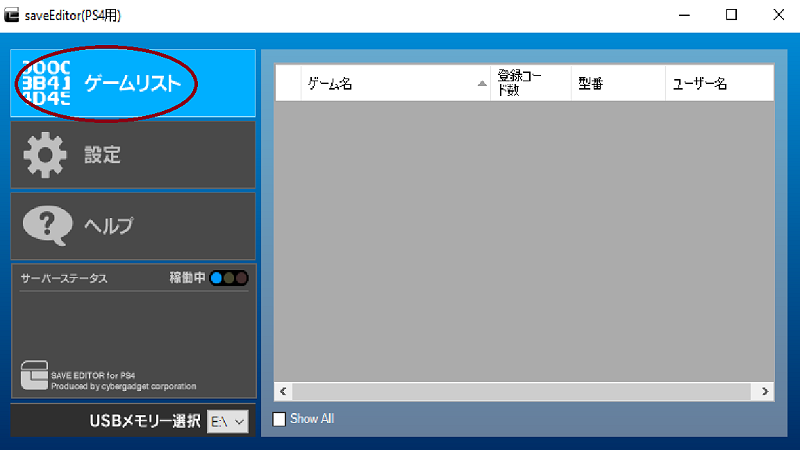
Step 2: Click in the top left side to show which saves are available.
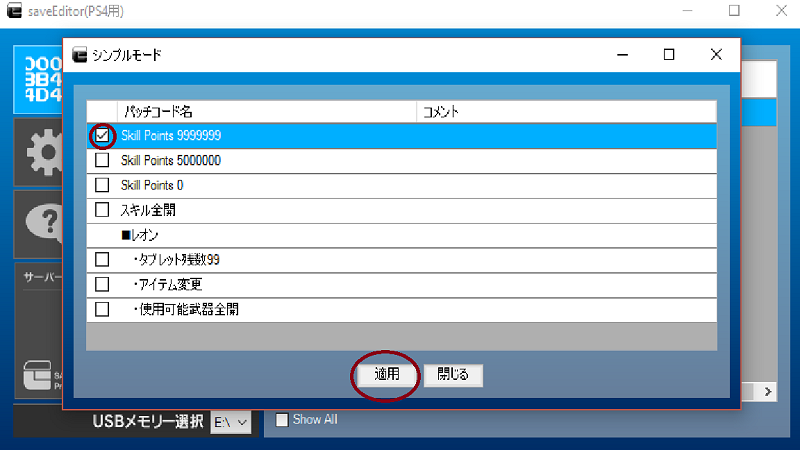
Step 3: Double click your save and choose which mod you want (Upper red circle) , then click on apply (red circle below)
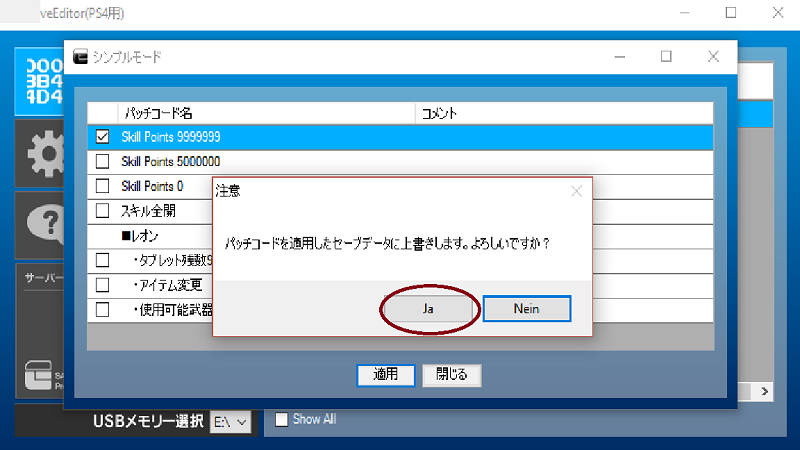
Step 4: The editor asks you if you are sure to apply this mods, click yes (red circle, here it says "ja" because my windows is in German)
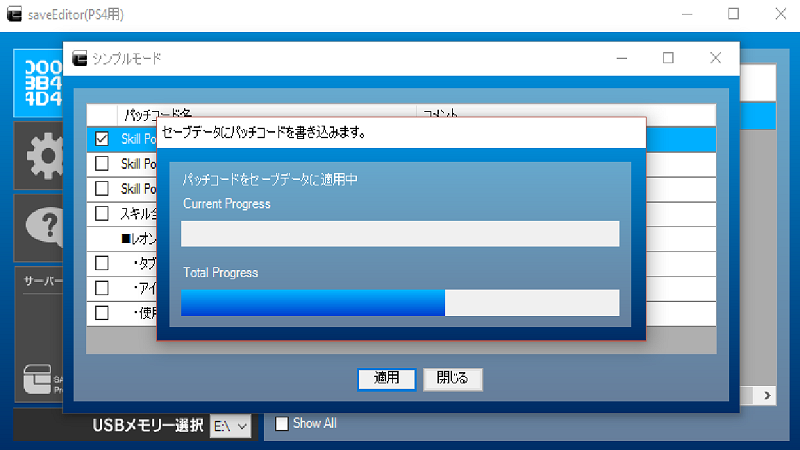
Step 5: Wait until the editor applied your chosen mods.
Step 6: Put your flash drive back into your PS4 and copy your save onto your PS4.
Step 7: Launch game and enjoy!
FAQ:
How can I get Japanese games?
You can create a Japanese account and download games there or visit Play-Asia.com (here you get also PSN cards for Japanese store).
If I mod a savegame I always get some message on Japanese, what does it mean?
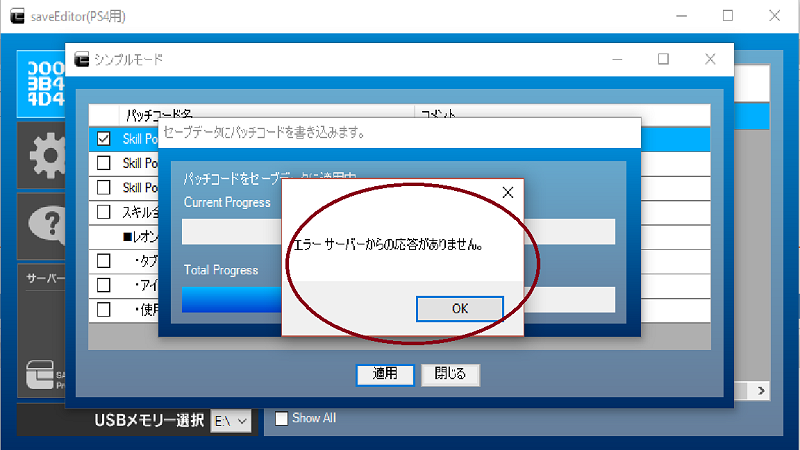
This message means that the server is not responding, i got it all day today, i dont know any...
To quote: Cyber Save Editor Tutorial
It seems that only Japanese saves are supported at the moment, so don't get it if you use US or EU saves!!!!
ALWAYS BACKUP YOUR SAVE BEFORE DOING ANY OF THE FOLLOWING STEPS!!!!
For a list with all compatible games click HERE.
Step 1: Copy the savegame you want to mod from your PS4 to flash drive and put the flash drive in your computer.
Step 2: Click in the top left side to show which saves are available.
Step 3: Double click your save and choose which mod you want (Upper red circle) , then click on apply (red circle below)
Step 4: The editor asks you if you are sure to apply this mods, click yes (red circle, here it says "ja" because my windows is in German)
Step 5: Wait until the editor applied your chosen mods.
Step 6: Put your flash drive back into your PS4 and copy your save onto your PS4.
Step 7: Launch game and enjoy!
FAQ:
How can I get Japanese games?
You can create a Japanese account and download games there or visit Play-Asia.com (here you get also PSN cards for Japanese store).
If I mod a savegame I always get some message on Japanese, what does it mean?
This message means that the server is not responding, i got it all day today, i dont know any...
Downloading & Storing PS4 Games and Apps to an External HDD Guide
Previously we covered Setting Up a USB 3.0 PS4 HDD, and now Sony's Rhys Sutheran followed-up with a guide on how to download and store PS4 games and apps to an external HDD for those on PS4 System Software 4.50. 
To quote: Minimum HDD spec
The most important thing to remember before you buy a new storage device – or try to use one you already own – is to make sure it meets the minimum requirements for use with your PS4:
Format your external HDD
Most storage devices will be a specific format out-of-the-box (usually FAT32/exFAT/NTFS/HFS). To prepare it for use with your PS4 you’ll need to format it to a special type to ensure it will work:
It’s also important to note that once you’ve formatted your external HDD to this specific PS4 format, you can only use it for PS4 games and apps – you won’t be able to store screenshots and video clips, saved data, Themes or any other types of media, documents, pictures on it, without re-formatting to its original state.
Once formatting is complete, you’ll see a message confirming that it’s been successful and a small green light will appear next to the device’s name, letting you know it’s activated as the main storage location.
Installing games and apps (and adds-on) to your external HDD/internal storage
Once formatted, your external HDD will be set as the default download location as long as it remains plugged in.
If you want to switch back to your PS4 internal storage for downloads (and back again to the external HDD), that’s easy too:
To quote: Minimum HDD spec
The most important thing to remember before you buy a new storage device – or try to use one you already own – is to make sure it meets the minimum requirements for use with your PS4:
- Connection: USB 3.0 or later
- Storage: 250GB (min) – 8TB (max)
Format your external HDD
Most storage devices will be a specific format out-of-the-box (usually FAT32/exFAT/NTFS/HFS). To prepare it for use with your PS4 you’ll need to format it to a special type to ensure it will work:
- Go to the Settings menu from your PS4 home screen.
- Scroll down to the Devices menu.
- Choose ‘USB Storage Devices’.
- Select your external HDD, then choose “Format as extended storage”.
It’s also important to note that once you’ve formatted your external HDD to this specific PS4 format, you can only use it for PS4 games and apps – you won’t be able to store screenshots and video clips, saved data, Themes or any other types of media, documents, pictures on it, without re-formatting to its original state.
Once formatting is complete, you’ll see a message confirming that it’s been successful and a small green light will appear next to the device’s name, letting you know it’s activated as the main storage location.
Installing games and apps (and adds-on) to your external HDD/internal storage
Once formatted, your external HDD will be set as the default download location as long as it remains plugged in.
If you want to switch back to your PS4 internal storage for downloads (and back again to the external HDD), that’s easy too:
- ...
Modding PS4 Trophies Displayed on Your Profile Demo by Modded Warfare
Following the PS4 Trophy Modding RTE Guide and his PS4 Payload Injector NetCat GUI, today PlayStation 4 developer @MODDEDWARFARE shared a video demonstration via his YouTube Channel on modifying PS4 Trophies displayed on your profile for 1.76 PS4 consoles. 
From the video's caption: PS4 Mod Displayed Trophies on your Profile
How to mod the displayed trophies on your profile on a 1.76 PS4.
Download: FileZilla: https://filezilla-project.org/
WebKit Exploit:
Browser Patch:
Cheers to @raedoob for sharing the news in the PSXHAX Shoutbox with us!
From the video's caption: PS4 Mod Displayed Trophies on your Profile
How to mod the displayed trophies on your profile on a 1.76 PS4.
Download: FileZilla: https://filezilla-project.org/
WebKit Exploit:
Browser Patch:
Cheers to @raedoob for sharing the news in the PSXHAX Shoutbox with us!
- PS4 Fake PKG (FPKG) Sharing Guide
- 6.XX Webkit / 6.72 PS4 Jailbreak
- 7.00-7.02 Webkit Exploit
- 7.02 Webkit / 7.02 Kernel / PS4JB
- 7.50 Kernel Exploit / PS4JB 7.55
- 7.55 / 8.00 Payloads / PS4JB2 7.55
- 9.00 PS4 Webkit Exploit
- 9.00 PS4 Payloads / GoldHEN (Latest)
- 9.00 PS4 Jailbreak Kernel Exploit
- 11.00 PS4 Jailbreak Kernel Exploit
- 13.00 PS4 Kernel Exploit / 13.02 BD-J Bug
- 4.03 PS5 Webkit Exploit
- PS5 Kernel Exploit (ExFAT Bug)
- PS5 Root Keys Obtained
- 4.03 PS5 Kernel Build String
- 4.03 PS5 Webkit Execution
- 4.03 PS5 Kernel Vulnerability
- 4.03 PS5 Filesystem Dumps
- 4.51 PS5 BD-JB Sandbox Escape
- PS5 BD-JB Exploit Hack Source Code
- Mast1c0re PS5 Userland Exploit
- PS5 Kernel Access via PS4 Exploit
- PS5 exFAT Vulnerability Disclosed
- 4.03 PS5 Kernel Exploit Webkit ROP
- 4.50 PS5 Kernel Exploit Webkit ROP
- 4.51 PS5 Kernel Exploit Webkit ROP
- 4.xx PS5 Kernel Exploit v1.01
- 4.xx PS5 Kernel Exploit v1.02 / v1.03
- PS5 1.00-6.50 Firmware Webkit
- Native PS5 ROP Chain Execution
- Mast1c0re PS5 Compiler Attack
- PS5 FreeBSD Kernel Bug & WebKit
- PS5 UMTX 2 Exploit & PS5 Jailbreak
- Byepervisor PS5 Hypervisor Exploit
- Lua Lapse PS5 Kxploit & Laps3c0re / Y2JB
- 12.00 / 12.70 PS5 Kernel Exploit