PSXHAX.COM website and domain for sale. Contact Us with your offer!

You are using an out of date browser. It may not display this or other websites correctly.
You should upgrade or use an alternative browser.
You should upgrade or use an alternative browser.
PSXHAX - PSXHACKS: PSX HAX - PSX HACKS - PLAYSTATION HAX - PLAYSTATION HACKS
PS4 ELF Loading via TaiHEN Patches, PlayStation 4 Game Backups Hint!
Following the BIG PlayStation 4 Beta 4.50 news earlier, today @zecoxao shared a heads-up on Twitter that Zer0xFF noticed some handy TaiHEN Patches (specifically the first three, he tweets) that will aid developers in loading ELFs on the PS4 1.76... which he hints can also lead to running PS4 game backups!!! 
To recap, the popular HENkaku PS Vita exploit was ported to PS4 HENkaku, as PS Vita CFW Framework TaiHEN paved the way for Adrenaline PSPemu CFW while developer Yifan Lu suggested a TaiHEN PS4 port providing the necessary functions could be found in the PS4 kernel developer dumps through the Dlclose Exploit.
Enter PS4 ELF Loader Tools, a PS4 Kernel ELF, PS4 ELF Hooking and a useful PS4 ELF Archive up to and including 3.55 for PlayStation 4 developers using the...
To recap, the popular HENkaku PS Vita exploit was ported to PS4 HENkaku, as PS Vita CFW Framework TaiHEN paved the way for Adrenaline PSPemu CFW while developer Yifan Lu suggested a TaiHEN PS4 port providing the necessary functions could be found in the PS4 kernel developer dumps through the Dlclose Exploit.
Enter PS4 ELF Loader Tools, a PS4 Kernel ELF, PS4 ELF Hooking and a useful PS4 ELF Archive up to and including 3.55 for PlayStation 4 developers using the...
Xploder PS4 Cheats System Incoming, Resigns PlayStation 4 Saves
Many moons ago we saw the Xploder PS3 Cheats System for unmodded consoles, and now following the recent PS4 Save Wizard news and Code Freak Cyber PS4 Save Editor the Xploder PS4 Cheats System is on the way and also resigns PlayStation 4 game saves. 
After seeing the $25.25 pre-order price tag here's to hoping a cracked / hacked / free / homebrew version surfaces once it gets in the hands of sceners and reverse-engineered, but until then here's what their Product Page states, to quote:
Xploder PS4 Cheats System
Highlights: Xploder is the ONLY PS4 cheat software in the world - With our exclusive "re-signing" technology you can instantly use any other ps4 save as your own.
Xploder is the ONLY PS4 cheat software in the world - With our exclusive "re-signing" technology you can instantly use any other PS4 save as your own.
Hunting around for cheats online can be tricky involving risky flashing or chipping of your console and carries high risk of damage, invalid warranties or getting your profile barred from PSN! No more risk taking, let Xploder do the hard work for you.
No other product, service or method offers this ability. It is exclusive to Xploder and another Xploder first.
A game save is a save point that has been uploaded by the Xploder team or a member of our extensive community. By downloading this save and using our exclusive technology, you can then use this save on your own PS4! Stuck on a level? Download a save point from later in the game! Want to see the ending? Download a save point from the end of a game!
Xploder is for everyone - all gamers need a little help some time.
Xploder is a system that allows any gamer to effortlessly obtain and use gamesaves on their consoles so they can unlock levels and stages, unlock secret/hard to find...
After seeing the $25.25 pre-order price tag here's to hoping a cracked / hacked / free / homebrew version surfaces once it gets in the hands of sceners and reverse-engineered, but until then here's what their Product Page states, to quote:
Xploder PS4 Cheats System
Highlights: Xploder is the ONLY PS4 cheat software in the world - With our exclusive "re-signing" technology you can instantly use any other ps4 save as your own.
Xploder is the ONLY PS4 cheat software in the world - With our exclusive "re-signing" technology you can instantly use any other PS4 save as your own.
Hunting around for cheats online can be tricky involving risky flashing or chipping of your console and carries high risk of damage, invalid warranties or getting your profile barred from PSN! No more risk taking, let Xploder do the hard work for you.
No other product, service or method offers this ability. It is exclusive to Xploder and another Xploder first.
- Works with the all the latest games, even games that profile lock their saves!
- Works with the latest PS4 firmwares without "jailbraking" or "modding"
- Assigns any save to your chosen PS4 profile.
A game save is a save point that has been uploaded by the Xploder team or a member of our extensive community. By downloading this save and using our exclusive technology, you can then use this save on your own PS4! Stuck on a level? Download a save point from later in the game! Want to see the ending? Download a save point from the end of a game!
Xploder is for everyone - all gamers need a little help some time.
Xploder is a system that allows any gamer to effortlessly obtain and use gamesaves on their consoles so they can unlock levels and stages, unlock secret/hard to find...
Setting Up & Building Payload.bin for PS4 Playground Guide by KKE_RW
We've seen a number of PlayStation 4 payloads including the PS4 Permanent Internet Browser Payload and a PS4 FTP Payload, and today PlayStation 4 developer KKE_RW shared a guide on Setting Up and Building Payload.bin for PS4 Playground as detailed below. 
To quote: Tutorial: How To Setup And Build Payload.bin For PS4 Using PlayGround
Hope it helps and Thanks to me KKE_RW, Cturt and 2much4u
To quote: Tutorial: How To Setup And Build Payload.bin For PS4 Using PlayGround
Hope it helps and Thanks to me KKE_RW, Cturt and 2much4u
- KKE_RW For This Tutorial
- 2much4u For Helping Me Help You
- CTurt For His PS4-*** And Webkit
- kR105, flatz, SKFU, droogie, Xerpi, Hunger, Takezo, nas, Proxima
- VirtualBox
- Ubunto
- LLVM
- Binutils
- PS4-***
- Install VirtualBox
- When Installed Open Up Click New
- Type: Linux
- Version: 64bit
- Recommended Memory (768MB - 4000MB) # Up To You
- Create a Virtual Hard Disk
- VDI (VirtualBox Disk Image)
- Dynamically allocated
- Hit next then create...
- Right Click Open Settings/Storage
- Controller: IDE #there a Disk+ At side click on that.
- Choose Disk
- Find File Location Of Ubuntu #ISO FILE
- File Name "ubuntu-16.04.1-desktop-amd64"
- Now Click Start.. #you might get error i686 Easy Fix.
- How To Fix At The Bottom Of This Thread.
- Now You Will Need To Setup #Its Easy
- Ok So start it up And install it like windows...
- Make Sure Your Doing This On Ubuntu And Not On Your Window
- Search Your Computer #Top Left
- Find Terminal And Open It Type Command
- " sudo apt install llvm " Hit Enter
- When Done
- Type Command
- " sudo apt install binutils " Hit Enter
- When Done. Close.
PS4 File Downloading to HDD / Viewing via Sandboxed Browser Testing
Following my PS4 4.50 Beta Webkit Crash report, I've been testing file downloading to the HDD and viewing files on the PlayStation 4 system using a sandboxed Web browser instead the PS4 browser via custom User Agent string on Sasuke Beta 4.50 Firmware.
There is a Webkit error in 4.50 that allows you to download Android apps to the HDD of the PS4, and of course you can't run them but hey none the less cool!
The part I don't understand is the PS4 shows up as a Motorola phone, I was thinking maybe a webkit error??? Let me know if this works for you guys too.
 Update: Now mine shows up as Rogers Samsung SM.G900F and can download and install Sonic Dash on the store but it can't be played hmmmm
I have also managed to view files on the system using a sandboxed browser inside the PS4 using a custom User Agent string, here is the link to do this:
https://www.browserling.com/
Note: you need your drive letter that is on the HDD, mine happened to be W and yes works on 4.50.
Update #2: Connect PC to PS4 Using HTML5
There is a Webkit error in 4.50 that allows you to download Android apps to the HDD of the PS4, and of course you can't run them but hey none the less cool!
The part I don't understand is the PS4 shows up as a Motorola phone, I was thinking maybe a webkit error??? Let me know if this works for you guys too.
Update: Now mine shows up as Rogers Samsung SM.G900F and can download and install Sonic Dash on the store but it can't be played hmmmm I have also managed to view files on the system using a sandboxed browser inside the PS4 using a custom User Agent string, here is the link to do this:
https://www.browserling.com/
Note: you need your drive letter that is on the HDD, mine happened to be W and yes works on 4.50.
Update #2: Connect PC to PS4 Using HTML5
Setting Up a USB 3.0 External HDD on PS4 Firmware 4.50 Guide
We've covered Upgrading a PS4 HDD, and beyond some Sasuke Crashes with the release of PS4 Firmware 4.50 Beta comes a guide on setting up a USB 3.0 external hard disk drive up to 8 Terabytes (TB) on PlayStation 4 Firmware 4.50 and above. 
Here are the PS4 External HDD Set Up Tutorial steps, to quote from the gurus at JustPushStart.com:
How To Use your External Hard Drive
To be able to use your external hard drive, make sure that the one you have is utilizes USB 3.0. You can either use the 3.5 External Hard Drive or those portable ones. In my case, I used Nyko’s Databank of the Xbox One to be the external hard drive of my PS4, equipped with an additional 1TB WD Green 3.5 hard drive.
Formatting your external hard drive is quite easy. Simply go to Settings and go to Devices. Under it, you’ll find USB Storage Devices.
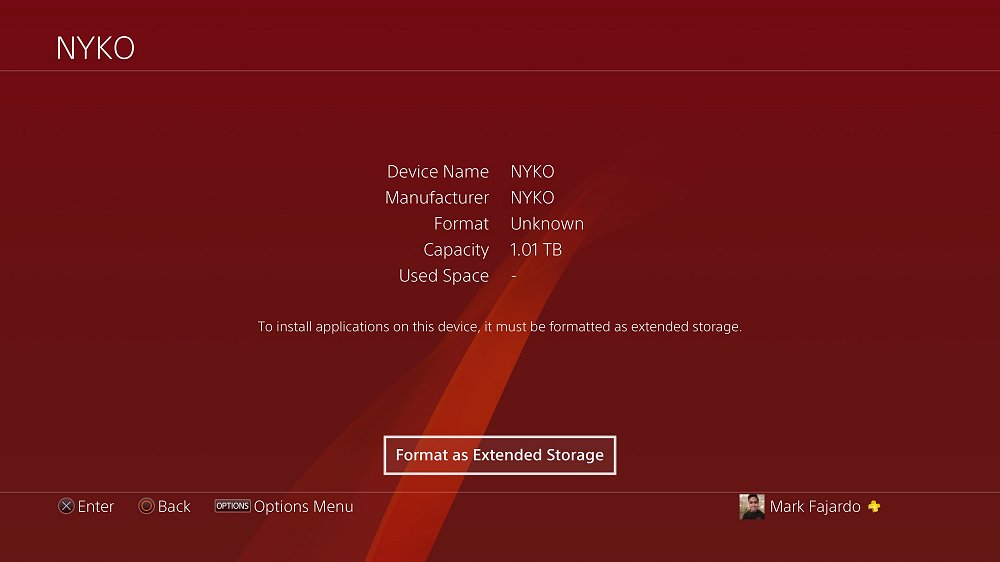
If you have multiple external hard drives hooked up on your PS4, find the ones you want to use. You’ll be then asked to format it.
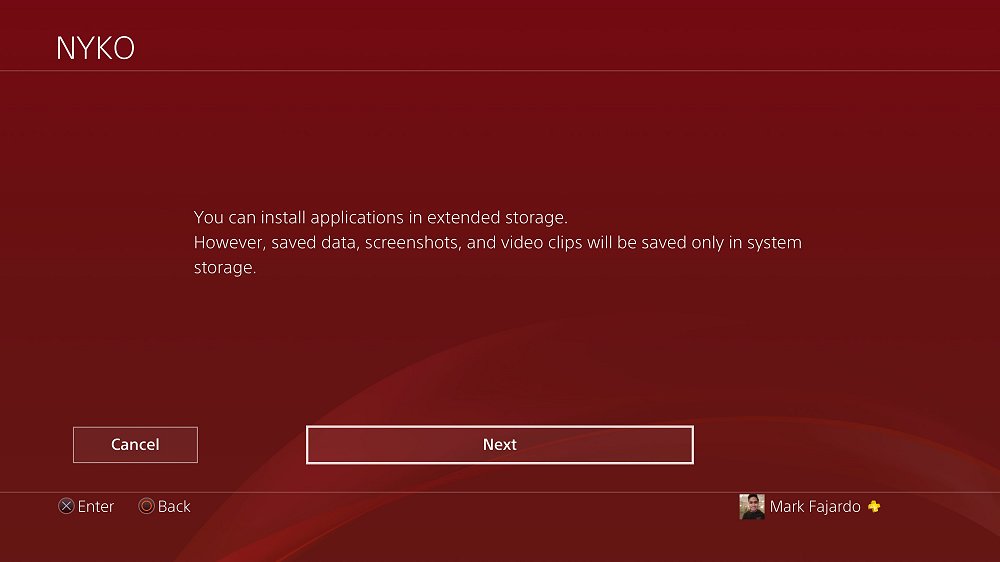
You’ll then go through the set-up process which is pretty quick.
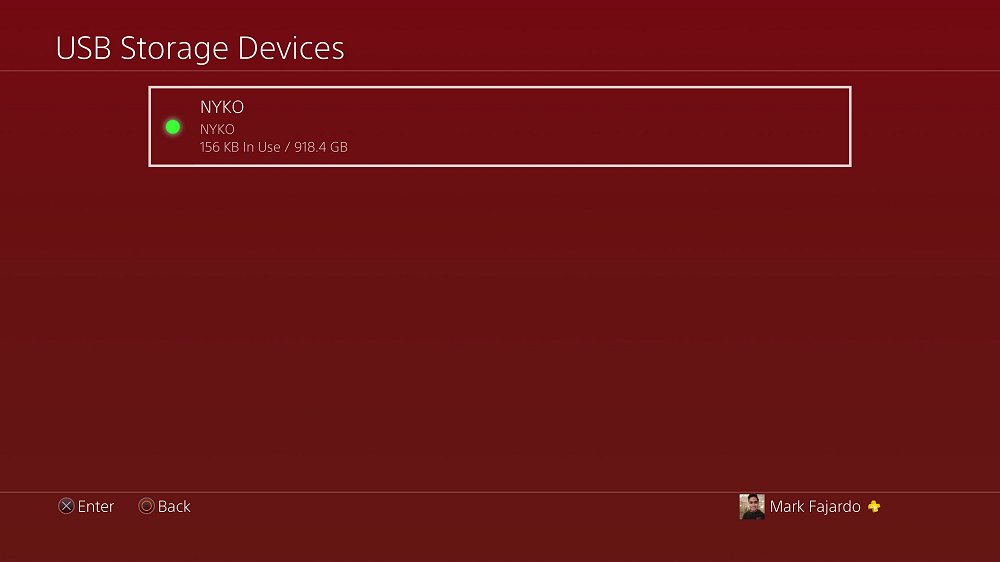
Once it’s done formatting, go back to the USB Storage Devices and you should see a green light icon beside the ones you formatted. If so, you are ready to use the hard drive!
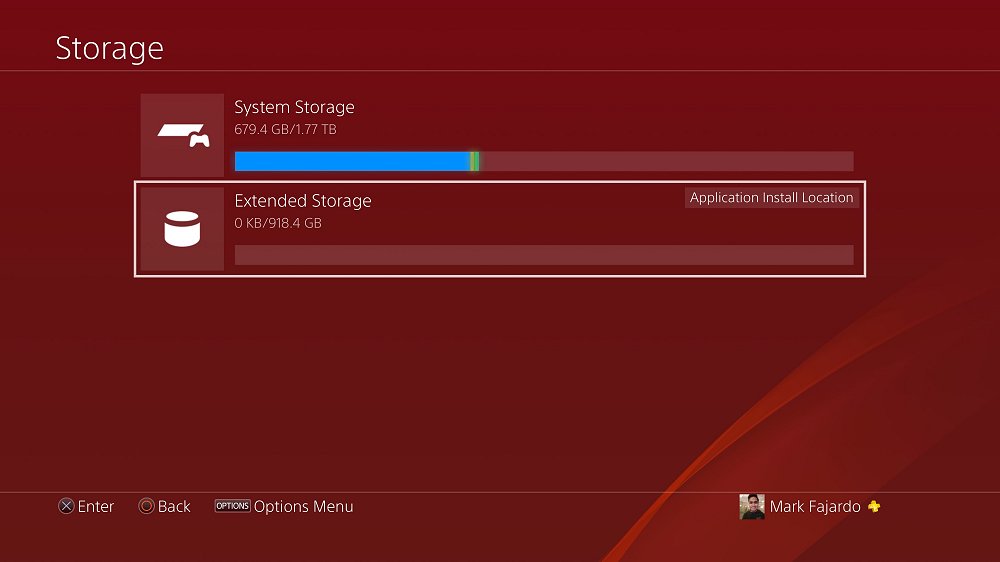
Now, you have the option to either use the hard drive you just formatted or simply keep installing applications on your internal storage until its full. To change the Applications Install location, simply highlight the hard drive of your choice, click the Options button from your DUALSHOCK 4 controller, and click confirm. You should see a text “Application Install Location” on the hard drive of your choice.
Please note that ONLY the applications and games are installed on the External Hard Drive. Save Datas and other internal files will be installed on the internal storage of your PS4.
Finally, from TheReverend210...
Here are the PS4 External HDD Set Up Tutorial steps, to quote from the gurus at JustPushStart.com:
How To Use your External Hard Drive
To be able to use your external hard drive, make sure that the one you have is utilizes USB 3.0. You can either use the 3.5 External Hard Drive or those portable ones. In my case, I used Nyko’s Databank of the Xbox One to be the external hard drive of my PS4, equipped with an additional 1TB WD Green 3.5 hard drive.
Formatting your external hard drive is quite easy. Simply go to Settings and go to Devices. Under it, you’ll find USB Storage Devices.
If you have multiple external hard drives hooked up on your PS4, find the ones you want to use. You’ll be then asked to format it.
You’ll then go through the set-up process which is pretty quick.
Once it’s done formatting, go back to the USB Storage Devices and you should see a green light icon beside the ones you formatted. If so, you are ready to use the hard drive!
Now, you have the option to either use the hard drive you just formatted or simply keep installing applications on your internal storage until its full. To change the Applications Install location, simply highlight the hard drive of your choice, click the Options button from your DUALSHOCK 4 controller, and click confirm. You should see a text “Application Install Location” on the hard drive of your choice.
Please note that ONLY the applications and games are installed on the External Hard Drive. Save Datas and other internal files will be installed on the internal storage of your PS4.
Finally, from TheReverend210...
- PS4 Fake PKG (FPKG) Sharing Guide
- 6.XX Webkit / 6.72 PS4 Jailbreak
- 7.00-7.02 Webkit Exploit
- 7.02 Webkit / 7.02 Kernel / PS4JB
- 7.50 Kernel Exploit / PS4JB 7.55
- 7.55 / 8.00 Payloads / PS4JB2 7.55
- 9.00 PS4 Webkit Exploit
- 9.00 PS4 Payloads / GoldHEN (Latest)
- 9.00 PS4 Jailbreak Kernel Exploit
- 11.00 PS4 Jailbreak Kernel Exploit
- 13.00 PS4 Kernel Exploit / 13.02 BD-J Bug
- 4.03 PS5 Webkit Exploit
- PS5 Kernel Exploit (ExFAT Bug)
- PS5 Root Keys Obtained
- 4.03 PS5 Kernel Build String
- 4.03 PS5 Webkit Execution
- 4.03 PS5 Kernel Vulnerability
- 4.03 PS5 Filesystem Dumps
- 4.51 PS5 BD-JB Sandbox Escape
- PS5 BD-JB Exploit Hack Source Code
- Mast1c0re PS5 Userland Exploit
- PS5 Kernel Access via PS4 Exploit
- PS5 exFAT Vulnerability Disclosed
- 4.03 PS5 Kernel Exploit Webkit ROP
- 4.50 PS5 Kernel Exploit Webkit ROP
- 4.51 PS5 Kernel Exploit Webkit ROP
- 4.xx PS5 Kernel Exploit v1.01
- 4.xx PS5 Kernel Exploit v1.02 / v1.03
- PS5 1.00-6.50 Firmware Webkit
- Native PS5 ROP Chain Execution
- Mast1c0re PS5 Compiler Attack
- PS5 FreeBSD Kernel Bug & WebKit
- PS5 UMTX 2 Exploit & PS5 Jailbreak
- Byepervisor PS5 Hypervisor Exploit
- Lua Lapse PS5 Kxploit & Laps3c0re / Y2JB
- 12.00 / 12.70 PS5 Kernel Exploit